

Notifications
Get notified about your Workspace in the Luxor app, by email, and in Telegram, Discord or Slack
Overview
Luxor can notify you when something important happens in your Workspace: a mining payout is sent, a Commander Agent goes offline, a change is waiting for your approval. You choose which notifications your Workspace gets and where each one is delivered.
There are five channels:
| Channel | Who receives it | Setup |
|---|---|---|
| In-app | Each member the notification is for, in their notification bell | None |
| Each member the notification is for, at their account email address | None | |
| Telegram | Everyone in the connected chat, group or group topic | Connect once per Workspace |
| Discord | Everyone in the connected Discord channel | Connect once per Workspace |
| Slack | Everyone in the connected Slack channel | Connect once per Workspace |
In-app and email notifications respect member permissions: for example, only members with access to a subaccount are notified about its payouts. Telegram, Discord and Slack post to a shared chat instead.
Choose shared chats carefully
Anyone in a connected chat can read the notifications posted there, including people who aren't members of your Workspace.
The Notification Bell
Click the bell at the top right of the app to see your notifications for the selected Workspace. The number on the bell is how many you haven't read.
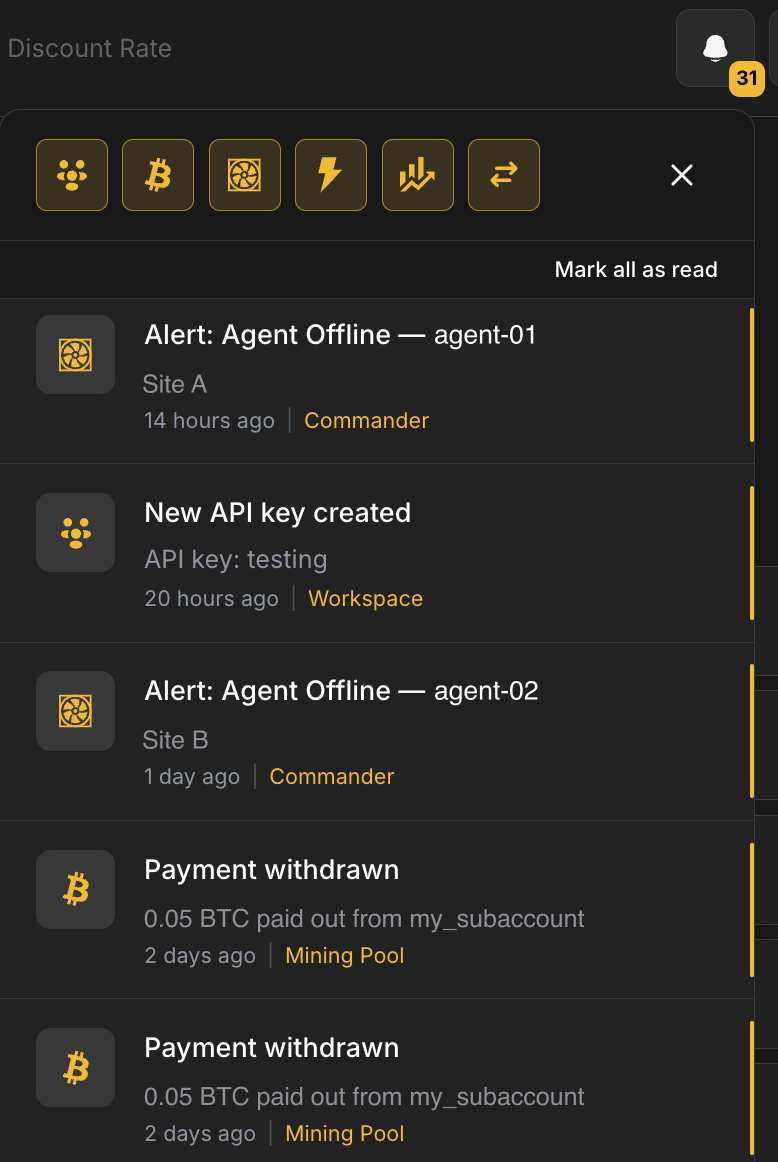
- Filter by product: click the product icons at the top to show or hide notifications from each product.
- Open a notification: click it to mark it as read and go to the related page, when there is one.
- Act on approvals: if you can approve a pending request, you can approve or decline it directly from the bell.
- Mark all as read: clear the unread count in one click.
Notification Settings
Open the Workspaces page, click the Workspace settings button (⚙️ icon), and go to the Notifications tab. These settings apply to the whole Workspace. Only the Workspace owner and Workspace-level Admins can change them.
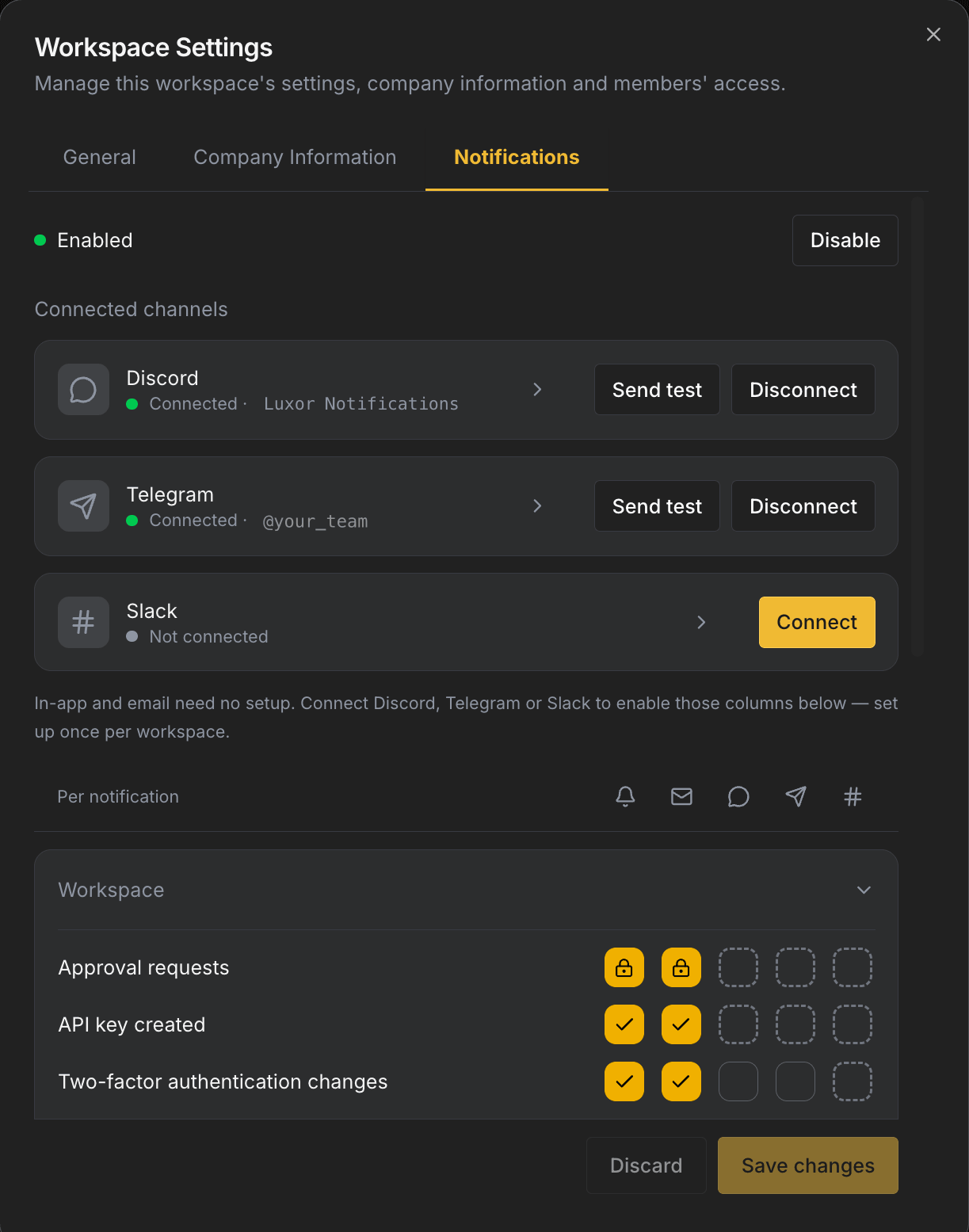
Choose What to Receive and Where
Under Per notification, each row is a notification and each column is a channel: in-app, email, Discord, Telegram and Slack. Tick the channels you want for each notification, then click Save changes.
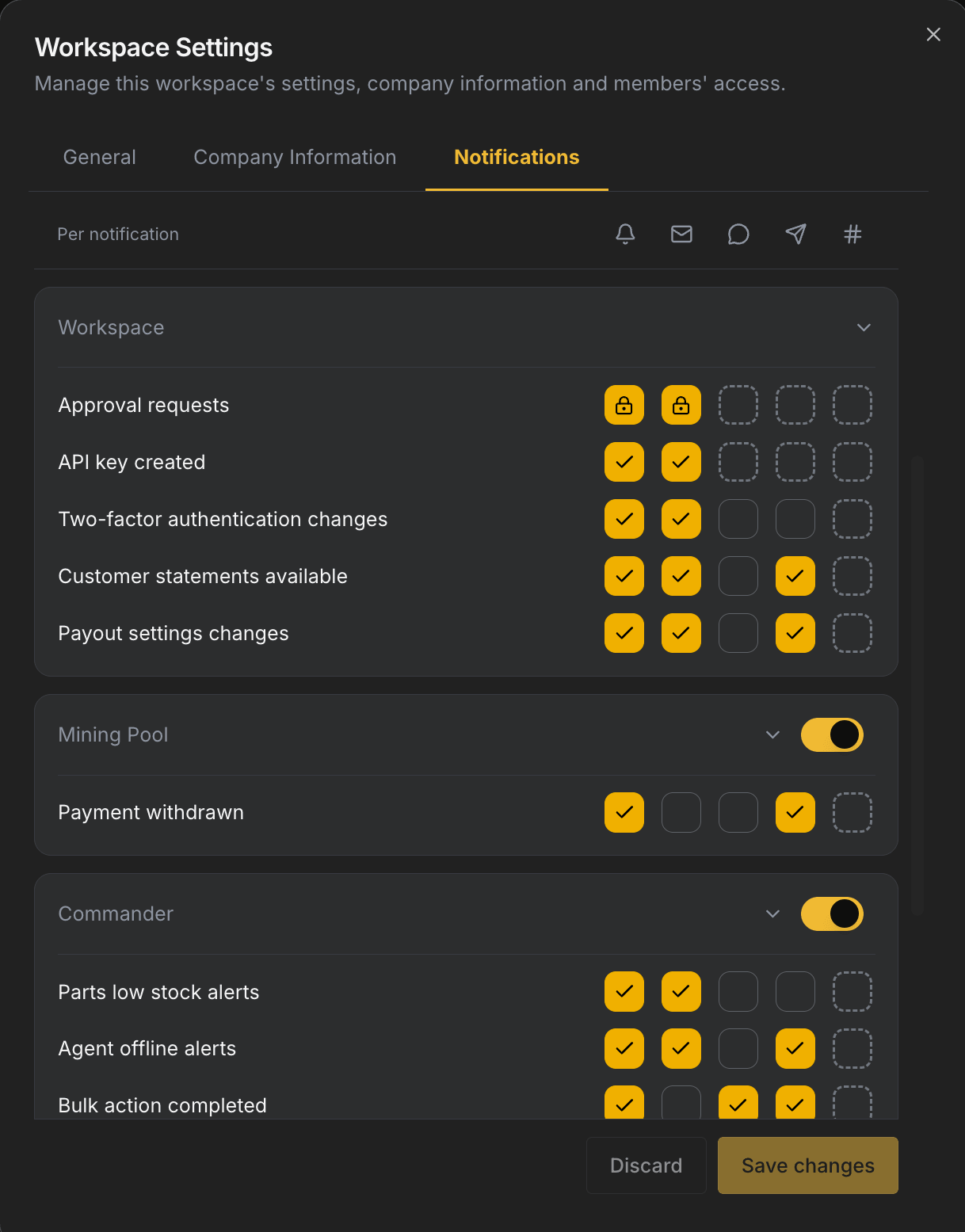
| Checkbox | Meaning |
|---|---|
| Ticked | The notification is delivered on this channel |
| Empty | The notification is not delivered on this channel |
| Lock | Required: it is always delivered and can't be turned off |
| Dashed | Not available: the channel isn't connected, or this notification doesn't use it |
Turn Notifications Off
- One notification: untick its channels, then click Save changes. You can turn off a single channel, or every channel to stop that notification completely. Tick them again to turn it back on.
- One product: use the switch next to the product's name. The Workspace group has no switch, but you can untick its individual notifications.
- The whole Workspace: click Disable at the top of the tab. Click Enable to turn notifications back on.
Your ticked channels are kept while a product or the whole Workspace is off. Required notifications are still delivered, and so are messages from Automation Rules.
Connect a Channel
Connecting a channel makes its column available, but doesn't tick anything for you: after connecting, choose the notifications you want on it and click Save changes.
Connect Telegram
Start the connection
In the Notifications tab, click Connect next to Telegram. The link you get expires after 15 minutes; you can generate a new one at any time.
Choose the chat
- Private chat: scan the QR code or click Open in Telegram, then press Start.
- Group: click Add the bot to a group and pick the group.
The chat is detected automatically.
Optional: use a group topic
Connect the group first. Then expand the Telegram card, copy the /bind command shown there, and send it inside the topic where you want the notifications.
A Telegram chat can be linked to one Workspace at a time. To move notifications to another chat or group, disconnect and connect again.
Connect Discord
- In Discord, go to Server settings → Integrations → Webhooks → New Webhook and pick a channel.
- Copy the webhook URL.
- In the Notifications tab, click Connect next to Discord, paste the URL and click Save connection.
Connect Slack
- Go to api.slack.com/apps, click Create New App and choose From scratch. Name the app and pick your Slack workspace.
- Turn on Incoming Webhooks, then click Add New Webhook to Workspace. Pick the channel and click Allow.
- Copy the webhook URL.
- In the Notifications tab, click Connect next to Slack, enter the webhook URL and the channel name, and click Save connection.
Keep webhook URLs private
Anyone with a Discord or Slack webhook URL can post messages to that channel.
Test or Disconnect a Channel
Click Send test to post a test message to the connected chat. Click Disconnect to stop posting there. To switch to a different Discord or Slack webhook, disconnect first and connect the new one.
Available Notifications
Unless noted, these notifications can be delivered on any channel. Telegram, Discord and Slack are always off until you tick them.
Workspace
| Notification | When it is sent | Who is notified | On by default |
|---|---|---|---|
| Approval requests (1) | A change is waiting for an approver to accept or reject it | Members who can approve it | In-app, email |
| API key created (2) | Someone created a new API key | Workspace owner and Admins | In-app, email |
| Two-factor authentication changes | The Workspace started requiring two-factor authentication. Turning it off sends nothing | Other Workspace members | In-app, email |
| Customer statements available | Your monthly customer statement is ready to download | Workspace owner and Admins | In-app |
| Payout settings changes | A subaccount's payout settings were changed | Members with access to the subaccount | In-app, email |
- (1) Required. In-app and email only.
- (2) In-app and email only.
Mining Pool
| Notification | When it is sent | Who is notified | On by default |
|---|---|---|---|
| Payment withdrawn | A mining payout was sent from one of your subaccounts | Members with access to the subaccount | In-app |
Commander
| Notification | When it is sent | Who is notified | On by default |
|---|---|---|---|
| Parts low stock alerts | A spare part at one of your sites is running low | Members with Commander access to the site | In-app, email |
| Agent offline alerts | A site's Commander Agent stopped reporting, so its miners can't be managed | Members with Commander access to the site | In-app, email |
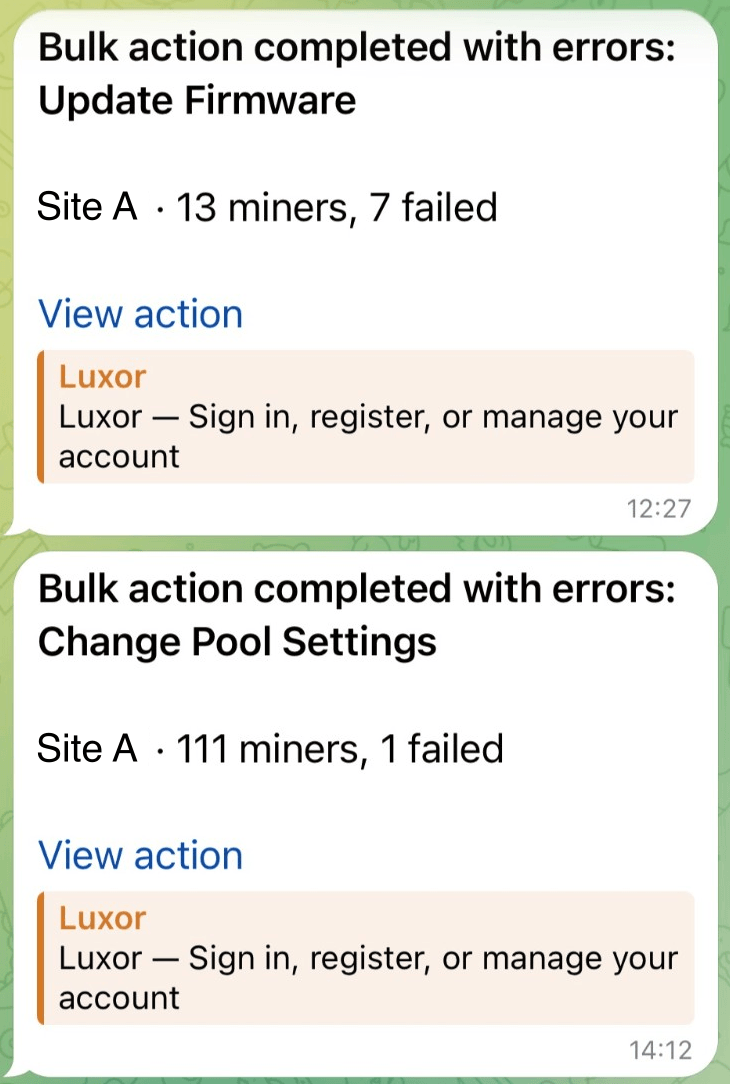
| Bulk action completed | A bulk action finished running, with how many miners failed | Members with Commander access to the site | In-app |
| Pool settings changed | Someone changed your miners' pool settings, by hand or from an automation | Workspace owner and Admins | In-app, email |
| Container critical alarms | A container controller raised a critical alarm, such as a coolant leak | Members with Commander access to the site | In-app |
| Automation rule failed on many miners | An automation rule's command failed on a large share of the miners it targeted | Members with Commander access to the rule's sites | In-app |
| Warranty expiring in 30 days | The manufacturer warranty of some of your miners ends in 30 days | Members with Commander access to the site | In-app |
Energy
| Notification | When it is sent | Who is notified | On by default |
|---|---|---|---|
| Coincident peak curtail alerts | A site started curtailing to avoid a coincident peak charge | Members with Energy access to the site | In-app |
| Dispatch events | A grid dispatch event started at one of your sites | Members with Energy access to the site | In-app |
Derivatives
| Notification | When it is sent | Who is notified | On by default |
|---|---|---|---|
| Contract started | One of your hashrate contracts started delivering | Members with Derivatives access | In-app |
| Contract ended | One of your hashrate contracts finished delivering | Members with Derivatives access | In-app |
Notifications from Automation Rules
Commander Automation Rules can send a notification when they fire, on the channels and to the recipients you pick in the rule itself. They use the Telegram, Discord and Slack connections described on this page, but not the grid in the Workspace settings.
Troubleshooting
| What you see | What to do |
|---|---|
| A column is dashed | Connect that channel first. If it's already connected, that notification isn't available on it |
| Telegram shows Not delivering | Make sure the bot is still in the chat and can post, and that the topic is open if you use one. Then send the command shown in the Telegram card in that chat |
| Discord or Slack shows Not delivering | The webhook was deleted or revoked. Disconnect it and connect a new one |
| "This chat is already linked" | The Telegram chat belongs to another Workspace. Disconnect it there, then generate a new link |
| You can't change the settings | Ask the Workspace owner or a Workspace-level Admin |