

Parts
Your spare-parts catalog: what you have, what your fleet needs, and what repairs consume
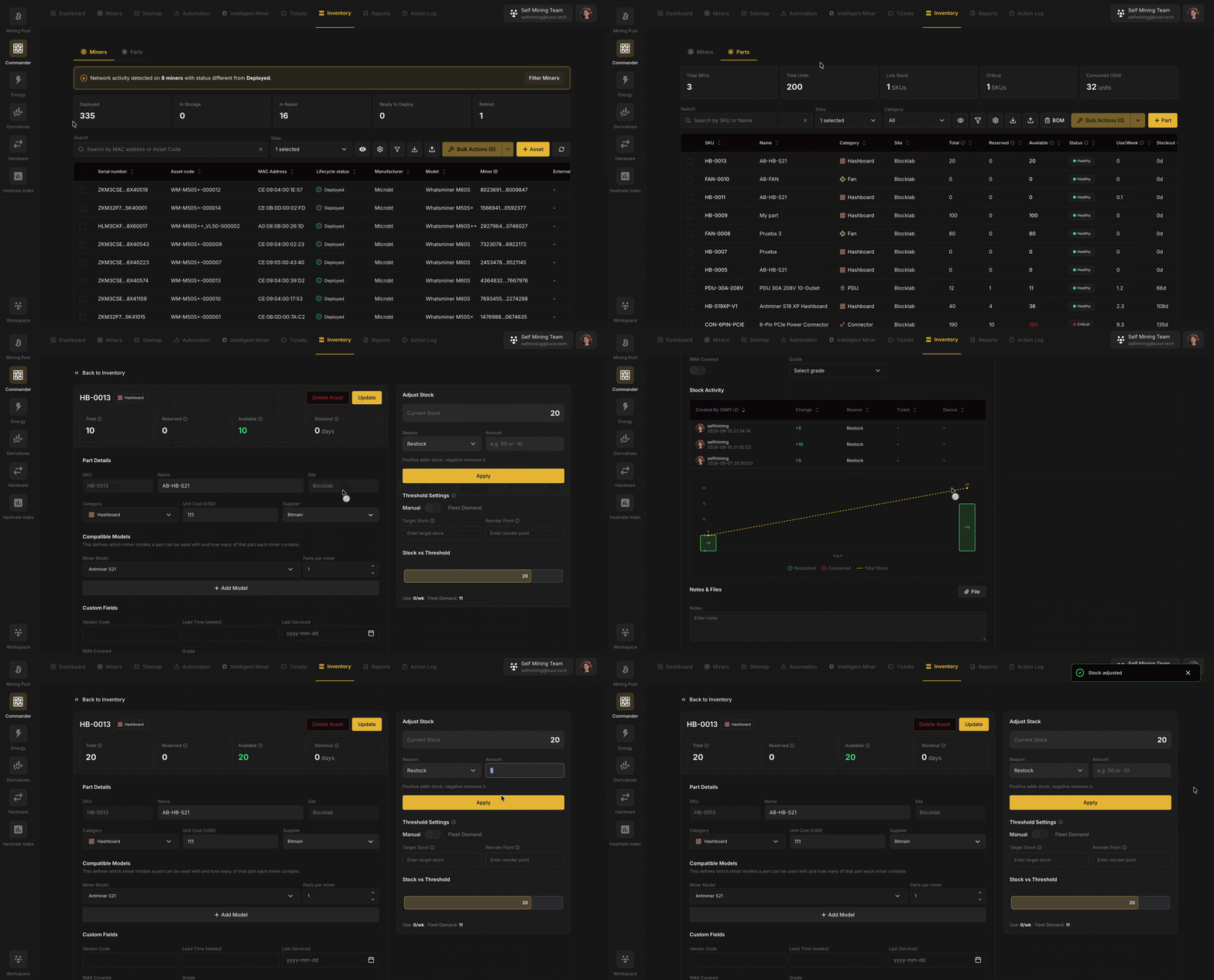
Overview
Spare parts are the single biggest operational risk most operators don't track well. A hashboard fails at 2am; the on-call tech walks to the shelf and finds the bin empty because yesterday's repair wasn't written down. The machine sits idle for weeks waiting on a replacement. Parts connects three things that are usually disconnected: what parts exist (the catalog), what the fleet needs (fleet demand), and what repairs consume (ticket-linked consumption).
Parts has its own page in Commander, separate from the Miners page. Miners tracks your machines, each with its own user-managed details; Parts (this page) is the catalog of spare components used to repair them.
Miners vs. Parts
| Miners | Parts | |
|---|---|---|
| What it is | Unique, serialized machines. | Fungible spare components (one S21 hashboard is interchangeable with another). |
| Identified by | Asset code / serial. | An auto-generated SKU (e.g. HB-0001). |
| Tracked as | Individual units with a deployment status. | A type of part with a quantity. |
| Scope | The whole workspace. | One site: each part's stock belongs to a single site. |
The parts catalog
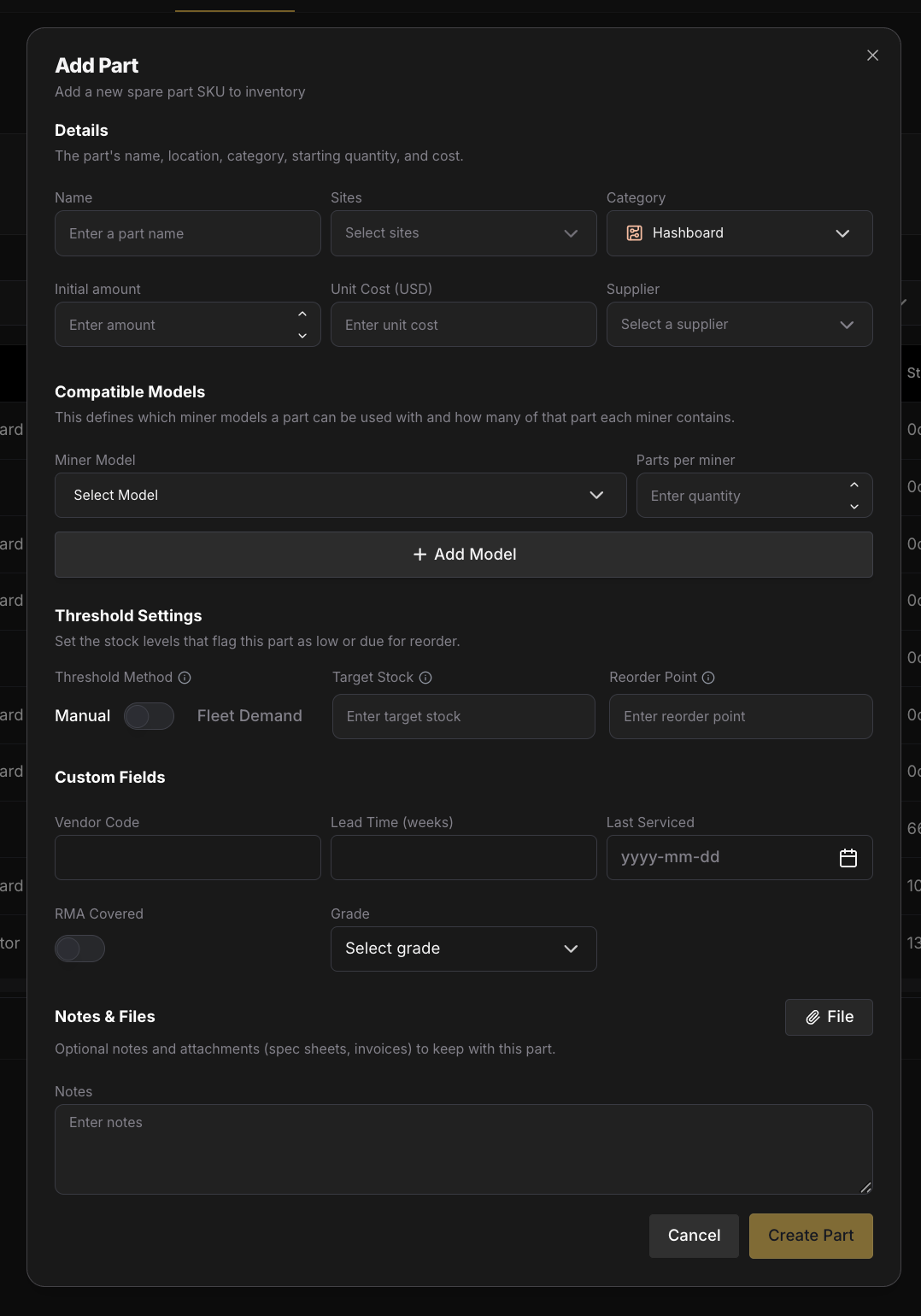
Each row in the Parts table is one part at one site, identified by a SKU that Commander generates and never changes. A part has:
| Field | Notes |
|---|---|
| SKU | Auto-generated and immutable (e.g. FAN-0003). |
| Name | e.g. "Antminer S21 Hashboard". |
| Category | One of the categories below, each with a colored icon for at-a-glance scanning. |
| Site | The single site this stock lives at. Set on creation; not editable afterward. |
| Unit cost | Optional. |
| Supplier | Optional. |
| Compatible models | The miner models this part goes into, and how many per miner; this drives fleet demand (see Bill of Materials). |
| Total / Reserved / Available | Stock counts (see Stock: total, reserved, available). |
| Threshold method & stock status | How low-stock is calculated and the resulting health (see Thresholds & stock status). |
| Custom fields | Any extra properties your workspace defines (see Settings). |
Categories: Hashboard · Fan · PSU · Control board · Cable · PDU · Connector · Other.
Parts are per-site. When you add a part for several sites at once, Commander creates one part per site, each with its own SKU and its own independent stock. A ticket can only reserve parts from its own site.
Add a part with Add Part; import many at once via CSV import.
Stock: total, reserved, available
Three numbers describe every part's stock:
- Total: how many units are physically at the site.
- Reserved: units spoken for by open tickets but still on the shelf.
- Available:
Total − Reserved. This is what gates new reservations.
Stock quantities are read-only in the table. You change the Total count in the part detail page via Adjust Stock.
Reserved vs. consumed
This is the link between Parts and Tickets:
- Reserved: a technician links a part to an open ticket. Available drops; Total is unchanged. The unit is claimed so no one else plans to use it.
- Consumed: the ticket closes (a Completed lane). Reserved parts are deducted from Total, and a Ticket consumption entry (stamped with the ticket's code) is written to the part's stock history.
- Released: the ticket is canceled (or the reservation is removed). The reservation is returned to Available; Total is untouched.
This two-step flow (reserve → consume) exists to prevent double-allocation: two technicians can't both plan on the last hashboard. See Tickets → Parts on a ticket for the ticket side.
Adjusting stock
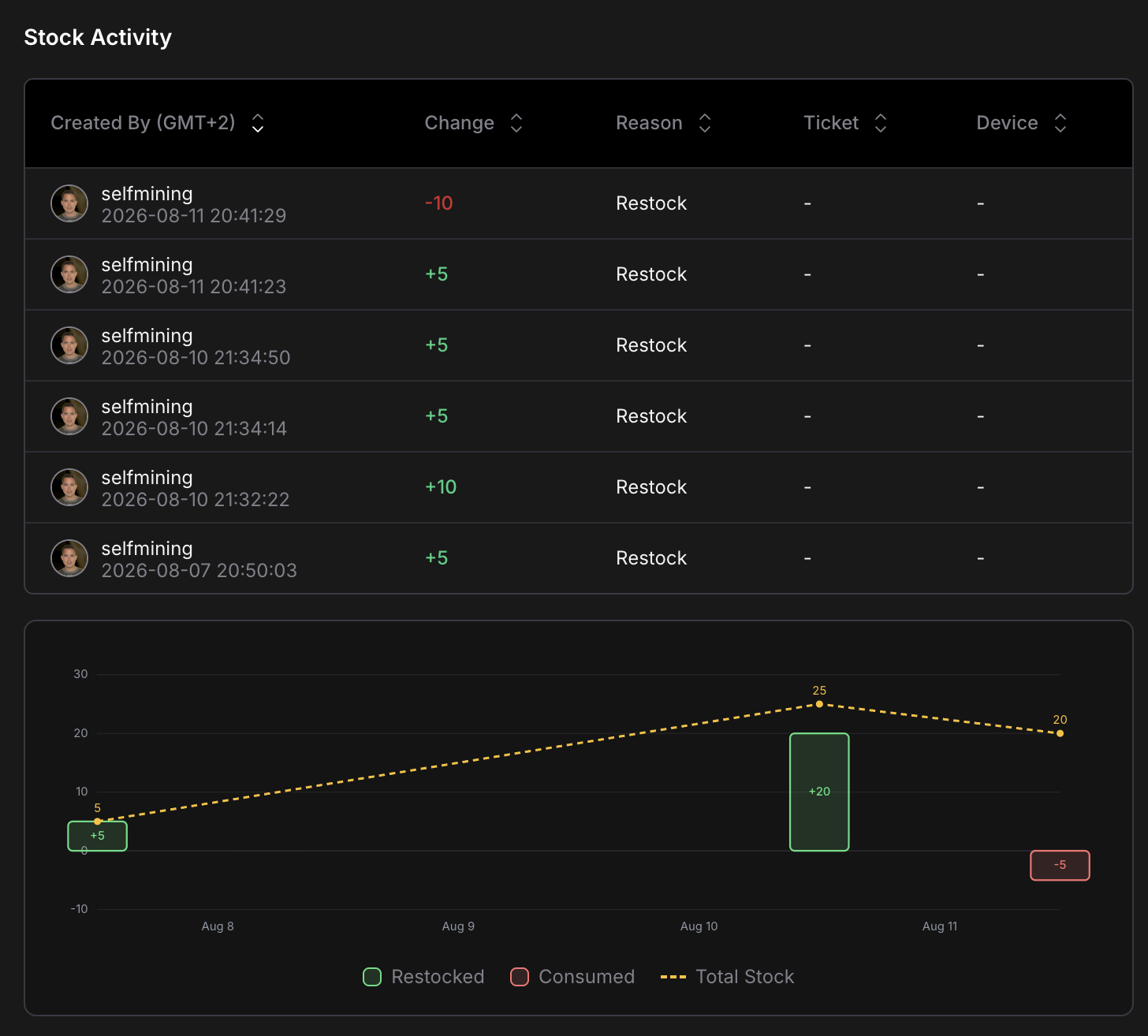
On the part detail page, Adjust Stock applies a delta (+/−) with a reason that feeds the part's stock history:
Restock · Correction · Damaged · Other
Ticket-driven consumption is not a manual reason; it's recorded automatically when a ticket closes, and shows in the history as Ticket consumption with a link to the ticket.
Thresholds & stock status
Every part can define a Target (the stock level you want to maintain) and a Reorder point (the level that triggers a low-stock alert). A toggle in the part detail modal picks how these are set:
- Manual: absolute quantities. Set the target (e.g. 100 units) and reorder point (e.g. 20 units) directly. Best for parts that don't map to per-miner counts: cables, PDUs, tools.
- Fleet demand: thresholds as a percentage of fleet demand (see below). Best for parts that scale with your fleet: hashboards, fans, PSUs.
- Not set: no thresholds; the part isn't tracked for low-stock.
From the thresholds, Commander derives each part's stock status:
Healthy · Low · Critical
When a part crosses its reorder point (including when a ticket close consumes it), a low-stock alert fires.
Fleet demand
The idea: Commander already knows how many miners you run and how many of each part they contain, so it can compute exactly how many of a part your fleet could need, and set thresholds off that number.
For each part:
Fleet demand = Σ (parts per miner × deployed miners of that model)
Example: a hashboard used by two models:
| Model | Parts per miner | Deployed miners | Subtotal |
|---|---|---|---|
| Antminer S21 | 3 | 180 | 540 |
| Antminer S21+ | 3 | 120 | 360 |
| Total fleet demand | 900 |
That 900 isn't how many you keep on the shelf; it's the denominator for your threshold percentages:
| Threshold | Meaning | Example (900 fleet demand) |
|---|---|---|
| Total Target (X%) | Ideal stock level; restock up to this. | 10% = 90 |
| Reorder point (Y%) | Triggers a low-stock alert; time to order. | 5% = 45 |
The gap between target and reorder is your supplier lead-time buffer: if replacements take three weeks to arrive and you burn ~8 hashboards a week, you want enough runway between "time to order" and "restocked."
Bill of Materials (BOM)
Fleet demand is only right if Commander knows what's inside each miner. That's the BOM: a cross-reference of models (rows) against part SKUs (columns), where each cell is how many of that part a miner of that model contains, with a fleet-demand total per part at the bottom.
The BOM is a read-only view; its data comes from the Compatible models you set on each part (e.g. "Antminer S21: 3 hashboards per miner"). Open it with the BOM button in the Parts controls bar.
Parts table, KPIs & filtering
The Parts view opens on a KPI row: Total SKUs, Total units, Low stock (SKUs), Critical (SKUs), and Consumed (30d, units).
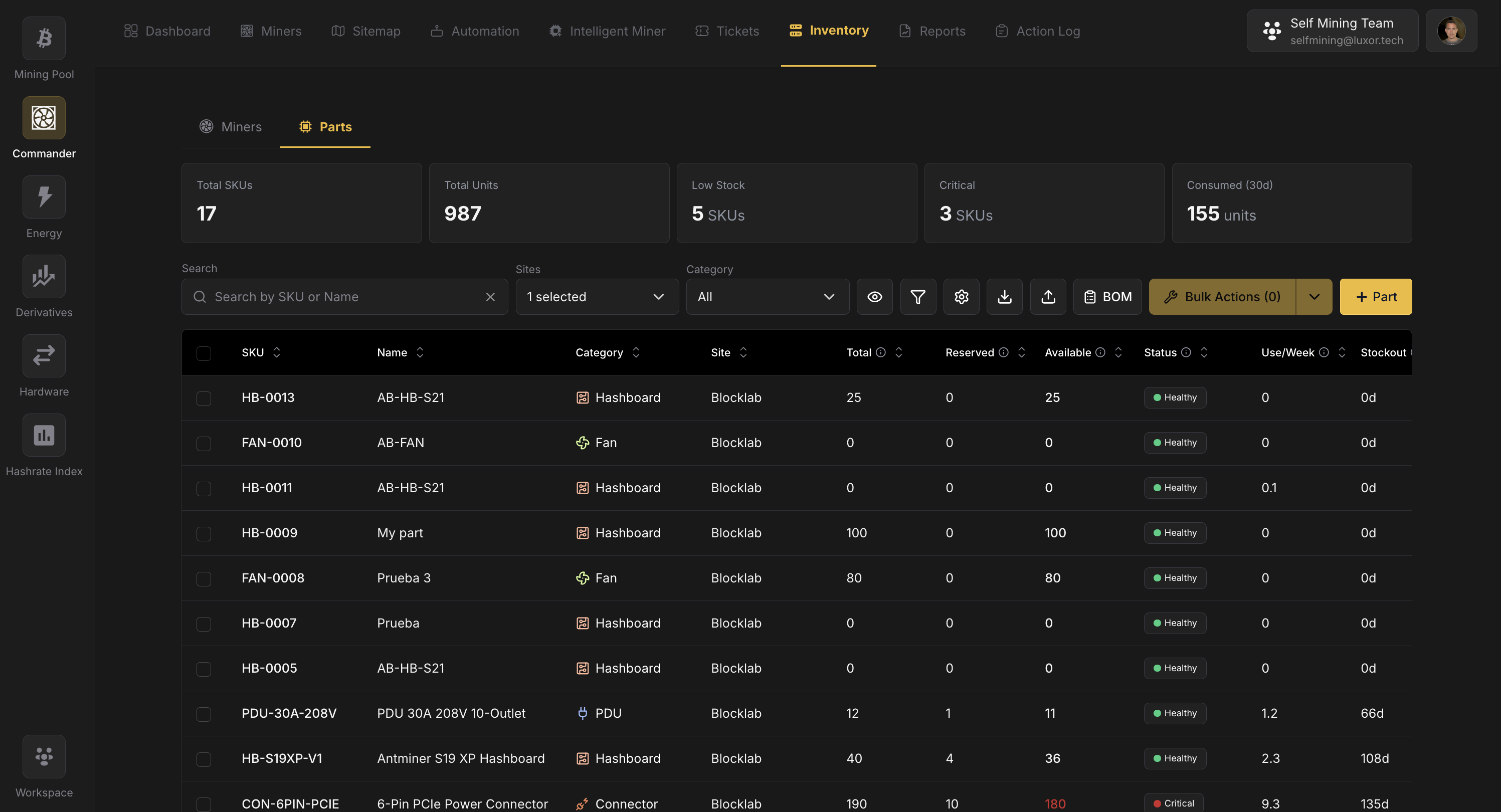
Filtering follows Commander's two-level pattern:
- Category dropdown in the controls bar for quick narrowing by part type.
- Funnel icon opens the filter dialog: Category, Stock status (Healthy / Low / Critical), Supplier, Threshold method (Fleet demand / Manual / Not set), and a timeframe.
Parts bulk actions
Select rows to enable Bulk Actions, then apply the same value across all selected parts (Category, Supplier, Threshold method, Total Target %, or Reorder point %), changing multiple properties in one pass. A separate Adjust Stock bulk action applies a signed quantity change with a reason (Restock / Correction / Damaged / Other) to every selected part, respecting per-site permissions and negative-stock guards. Delete releases any active reservations before removing the parts.
Part detail page
Click a part to open its detail page:
- Part details: edit name, category, unit cost, supplier, and compatible models. SKU and Site are read-only.
- Stock KPIs: Total, Reserved, Available, and Stockout (days) (a runway estimate from recent consumption).
- Adjust Stock: apply a delta with a reason (Restock / Correction / Damaged / Other).
- Stock vs. threshold: a meter showing current stock against target and reorder point.
- Threshold settings: switch between Manual and Fleet demand and set the values.
- Stock activity: a history table plus a per-day chart. Ticket consumption entries link back to the ticket that consumed the part.
- Notes & files: attach notes and documents to the part.
CSV import
Import or update many parts at once with a CSV. Existing parts are matched by SKU; a row with a blank SKU and a site creates a new part.
Settings
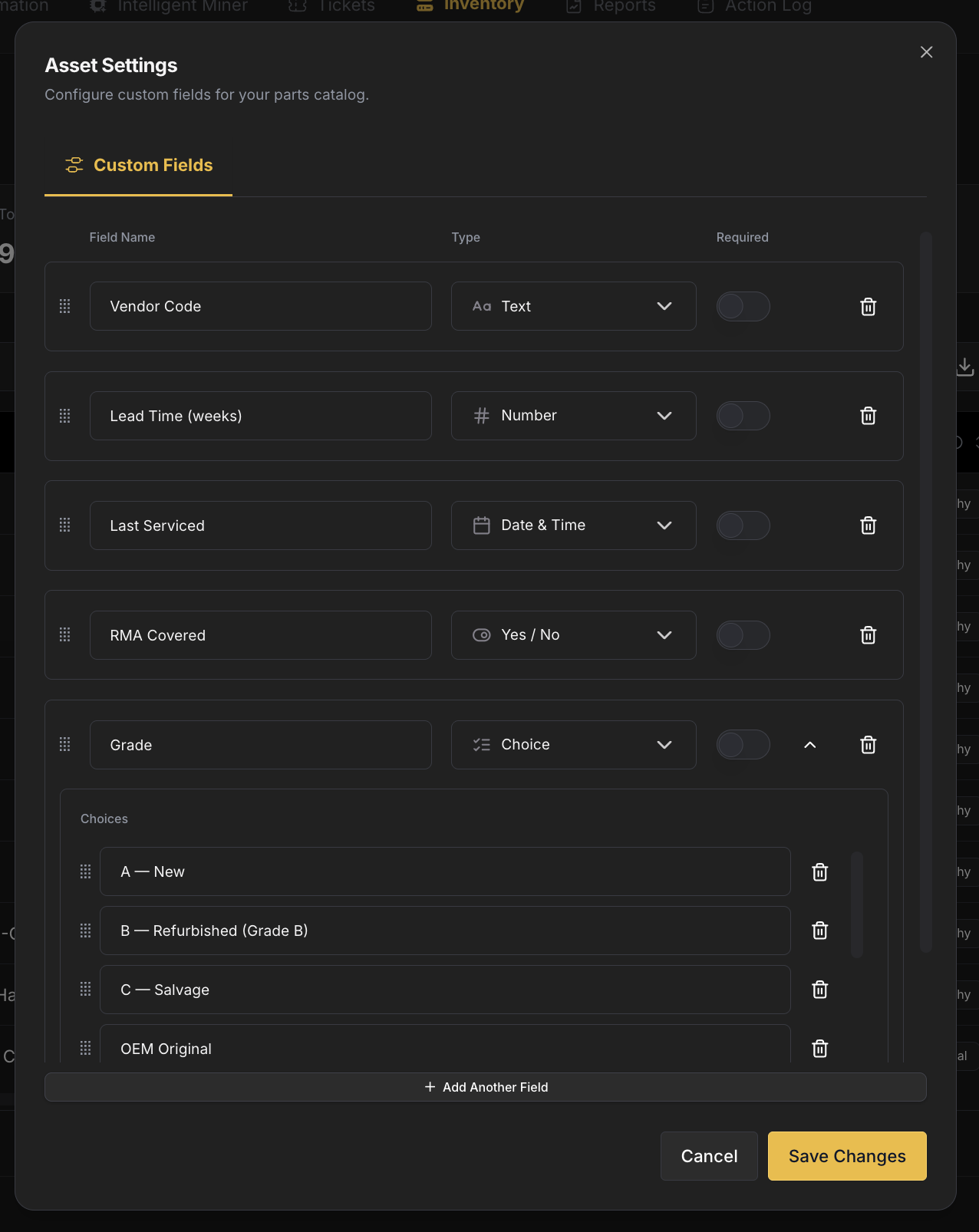
Open the ⚙ Settings dialog from the Parts toolbar to manage parts Custom Fields: extra properties (text, number, date, select, and more) that then appear on the part, in the Parts table, and in the filter dialog. Parts custom fields are separate from the custom fields on miners.
Related
Hosted Clients
Group the miners you host by client to report on them, bill their energy, and optionally give them a login to run their own machines
Tickets
Track every repair from the moment a miner fails to the moment it's back online: who's working on it, which parts it consumed, and the full history of what happened