

Tickets
Track every repair from the moment a miner fails to the moment it's back online: who's working on it, which parts it consumed, and the full history of what happened
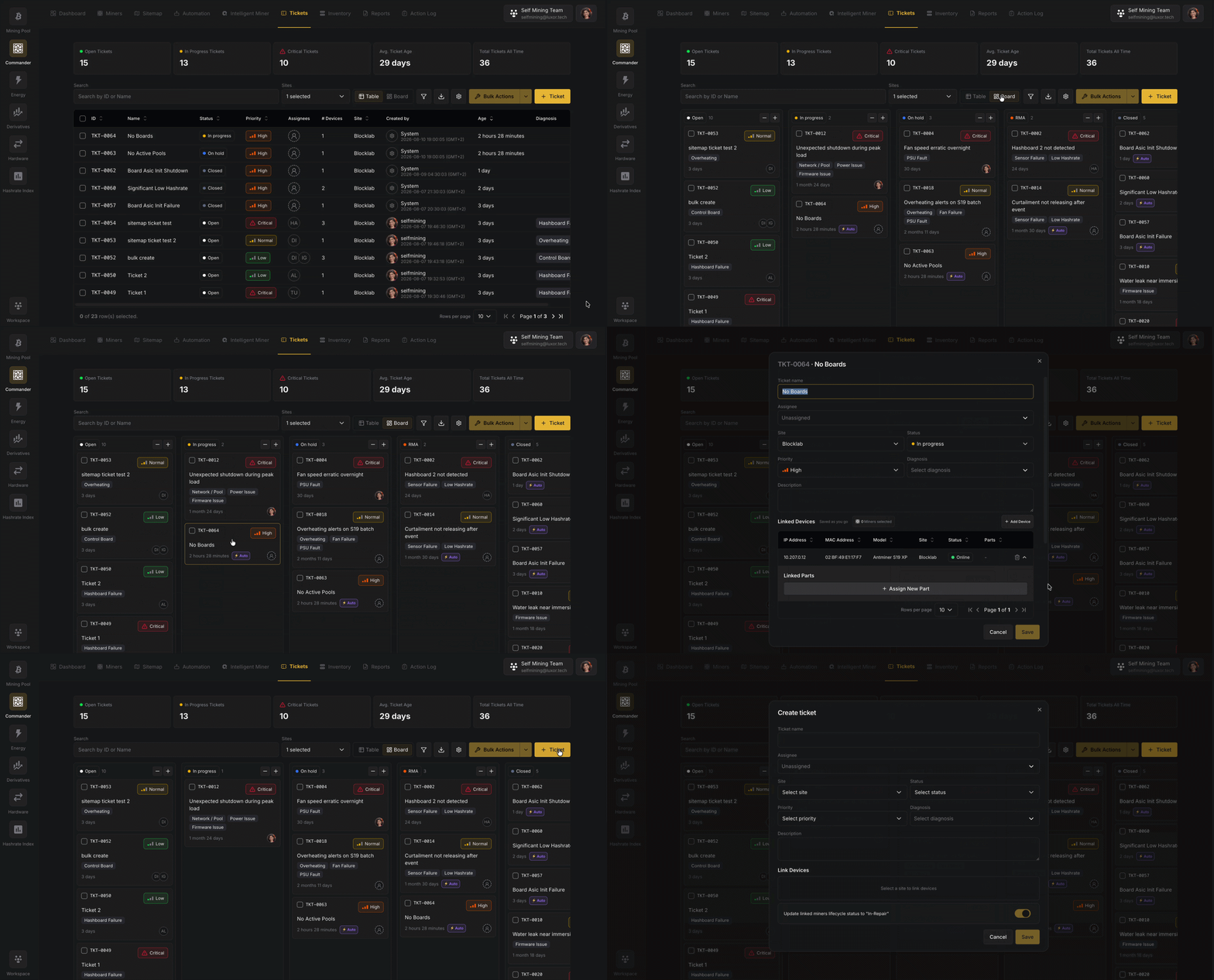
Overview
Commander detects problems: alerts fire, hashrate drops, the agent reports a hardware fault. Tickets is where you manage what happens after, the structured record of the repair itself.
A ticket represents a single repair task. It ties together the site where the work is happening, the miners affected, the person doing the work, the spare Parts consumed, and a complete activity history. Tickets can be opened by a person or created automatically by Commander when the agent reports a persistent hardware error, so the same system that finds the problem also tracks the fix.
Tickets live under Commander → Tickets and offer two views of the same data: a Board (Kanban) and a Table.
Key Concepts
What a ticket carries
| Field | Description |
|---|---|
| Code | A short, human-readable identifier assigned automatically per workspace (e.g. TKT-0042). Use it to reference the ticket in conversation. |
| Title | A human description of the issue (e.g. "Rack C2-R3 hashboard failure"). |
| Description | Optional free-text detail. Auto-created tickets fill this in with the error and a troubleshooting guide. |
| Site | The one site where the affected machines are located. Every ticket belongs to exactly one site. |
| Priority | Critical, High, Normal, or Low. |
| Status | The lane the ticket sits in (see Statuses & lanes). |
| Assignees | One or more people responsible for the work. Assignees are always real people, never the system. |
| Created by | Who opened the ticket: a person, or System for auto-created tickets. |
| Linked devices | The specific miners this repair covers (see Linked devices). |
| Parts | Spare parts reserved and consumed for the repair (see Parts on a ticket). |
| Custom fields | Any extra properties your workspace has defined (e.g. Diagnosis, Root cause, Labor hours). |
Created by vs. Assignee. These answer different questions. Created by records where the ticket came from (a person, or System for automated tickets). Assignee is who's holding the screwdriver, always a real person. A system-created ticket has no assignee until someone picks it up.
Priority
Four levels, shown with distinctive icons so you can scan a column of tickets and spot the urgent ones by shape alone:
Critical · High · Normal · Low
Statuses & lanes
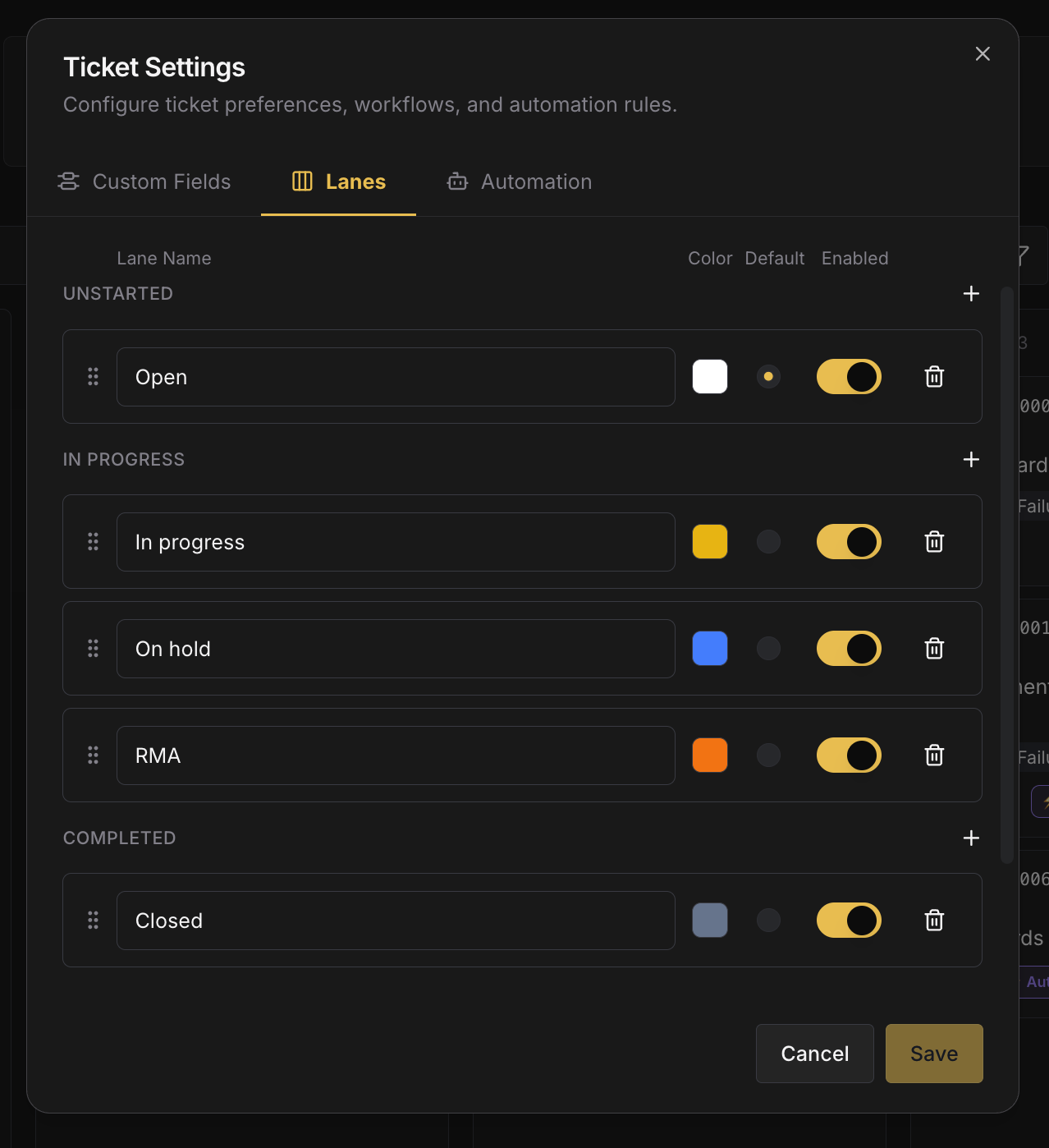
A ticket's status is the lane it sits in on the board. Lanes are configurable per workspace: you can rename them, reorder them, add your own, disable ones you don't use, and choose the default lane new tickets land in.
Every workspace starts with a sensible default set:
| Lane | Behavior | What it means |
|---|---|---|
| Open | Unstarted | The issue is known but nobody has started working on it yet. (Default lane for new tickets.) |
| In progress | In progress | A technician is actively diagnosing or repairing. |
| On hold | In progress | Paused, usually waiting for a spare part to arrive. |
| RMA | In progress | The hardware has physically been sent to the manufacturer for warranty repair. |
| Closed | Completed | Fixed and verified. Any reserved parts are consumed from stock. |
Behind each lane is one of four behaviors that Commander uses to drive automation and part side-effects, regardless of what you name the lane:
| Behavior | Meaning | Effect on parts |
|---|---|---|
| Unstarted | Work hasn't begun. | None. |
| In progress | Work is underway (the In progress, On hold, and RMA lanes, or any custom lane here). | None. |
| Completed | The repair is done. | Reserved parts are consumed (stock is decremented). |
| Canceled | The ticket was voided without a repair. | Reserved parts are released back to available stock. |
Why RMA is its own lane. "5 machines at Bitmain for warranty repair" is a different situation from "5 machines waiting on a fan we ordered." RMA and On hold are both in-progress behaviors, but keeping them separate tells you at a glance where the delay actually is.
Manage lanes from Ticket Settings → Lanes (see Ticket settings).
The Board and the Table
Tickets are shown two ways; switch between them from the Tickets page.
-
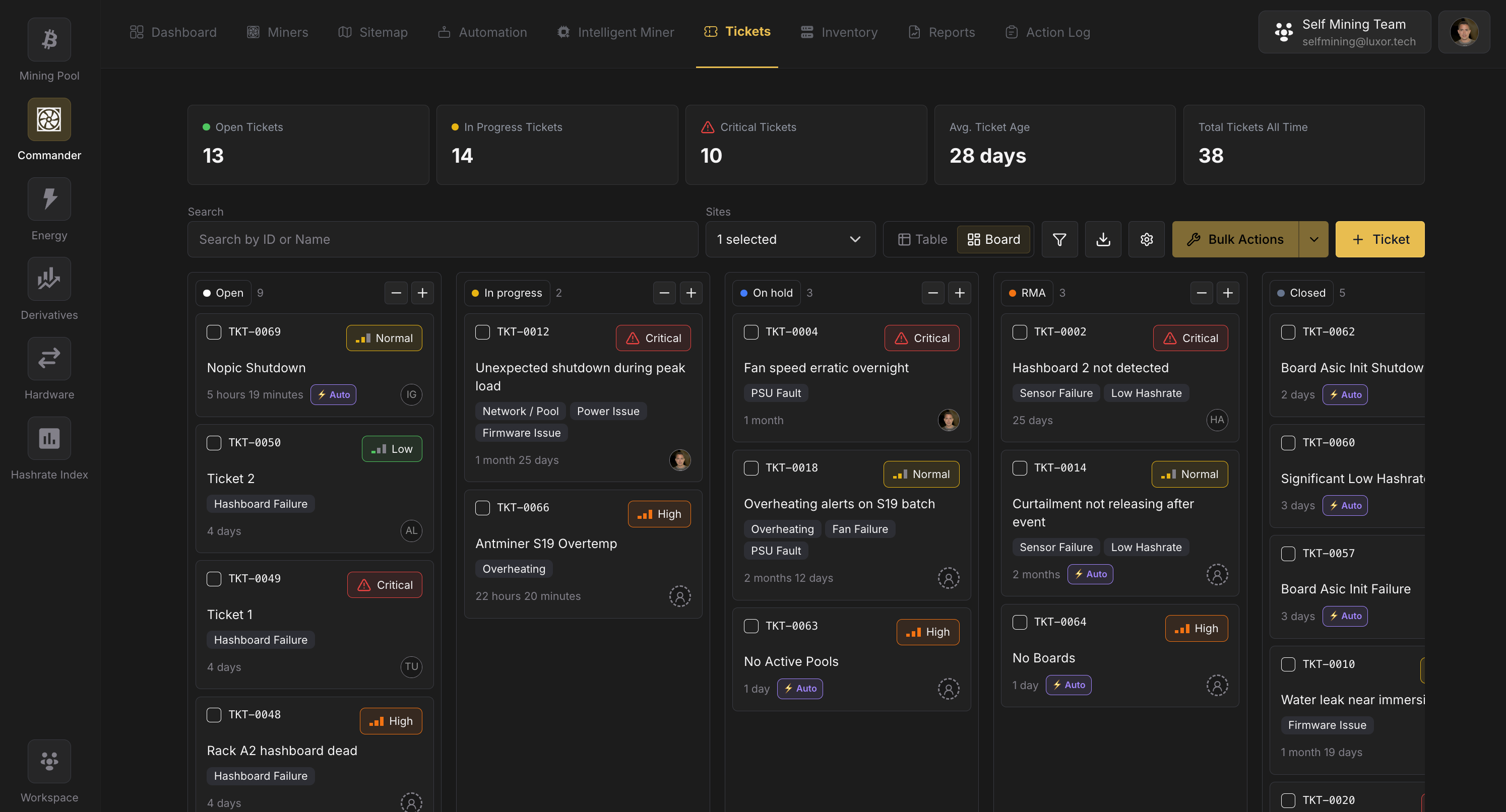
Board (Kanban). Columns are your lanes; each card shows priority, assignee avatars, age, and device count. Managers get a spatial overview (how many repairs are waiting, active, on hold, or at RMA) and can triage without opening each one. Drag a card between lanes to change its status, or within a lane to reorder by urgency.
-
Table. A dense, sortable list of the same tickets with columns for code, title, status, priority, site, assignees, created by, and your custom fields. Best for filtering, bulk edits, and export.
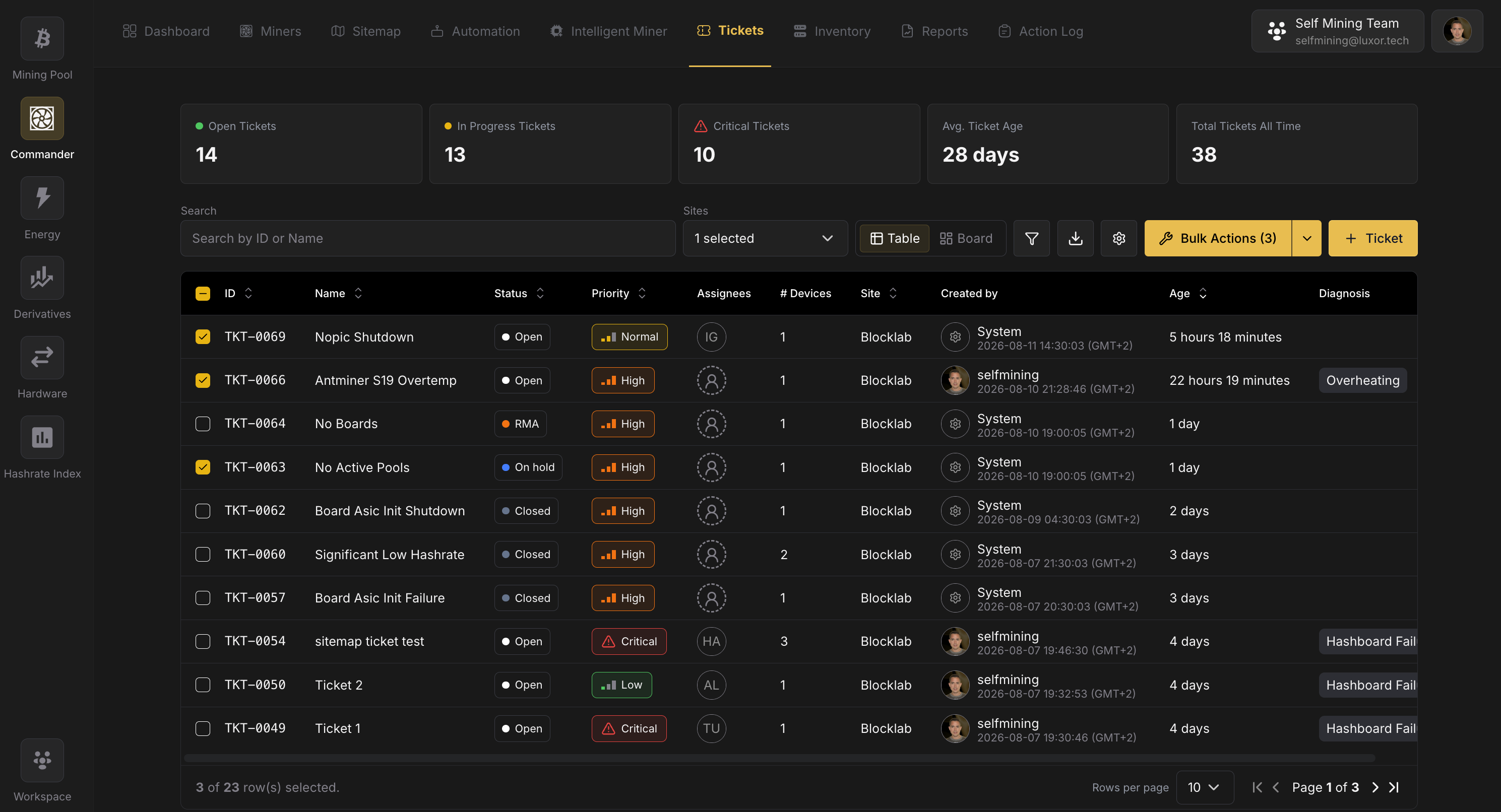
At the top of the page, a KPI row summarizes the current view: Open Tickets, In Progress Tickets, Critical Tickets, Avg. Ticket Age, and Total Tickets All Time.
Creating tickets
Tickets come from two kinds of sources: people and Commander itself.
Manually
- From the Tickets page. Click Create and fill in the ticket: title, site, priority, status, description, assignees, and any custom fields. You can then link the affected miners as devices.
- From the Miners page. Select one or more miners and use Bulk Actions → Administrative → Create Ticket. The new ticket is pre-scoped to the miners' site and links them as devices automatically. All selected miners must be on the same site, up to 50 per ticket.
- From the Sitemap. Open a miner's popover on the map and create a ticket directly, with site and device pre-filled.
Automatically (system tickets)
Commander watches for unresolved hardware errors reported by the LuxOS agent: ASIC enumeration failures, thermal shutdowns, PSU faults, fan failures, and similar. When such an error persists, Commander opens a ticket for you:
- Created by shows System, and the ticket carries an ⚡ Auto badge.
- The description includes the error and a troubleshooting guide specific to that error type, so a junior technician can start work without asking a senior colleague what to check.
- Affected miners that Commander already has a record for are linked as devices automatically. Others are added on a later check while the ticket is open.
System tickets are deduplicated: the same ongoing error won't spawn duplicate tickets. See Auto-close & recurrence for what happens when the error clears or comes back.
Linked devices
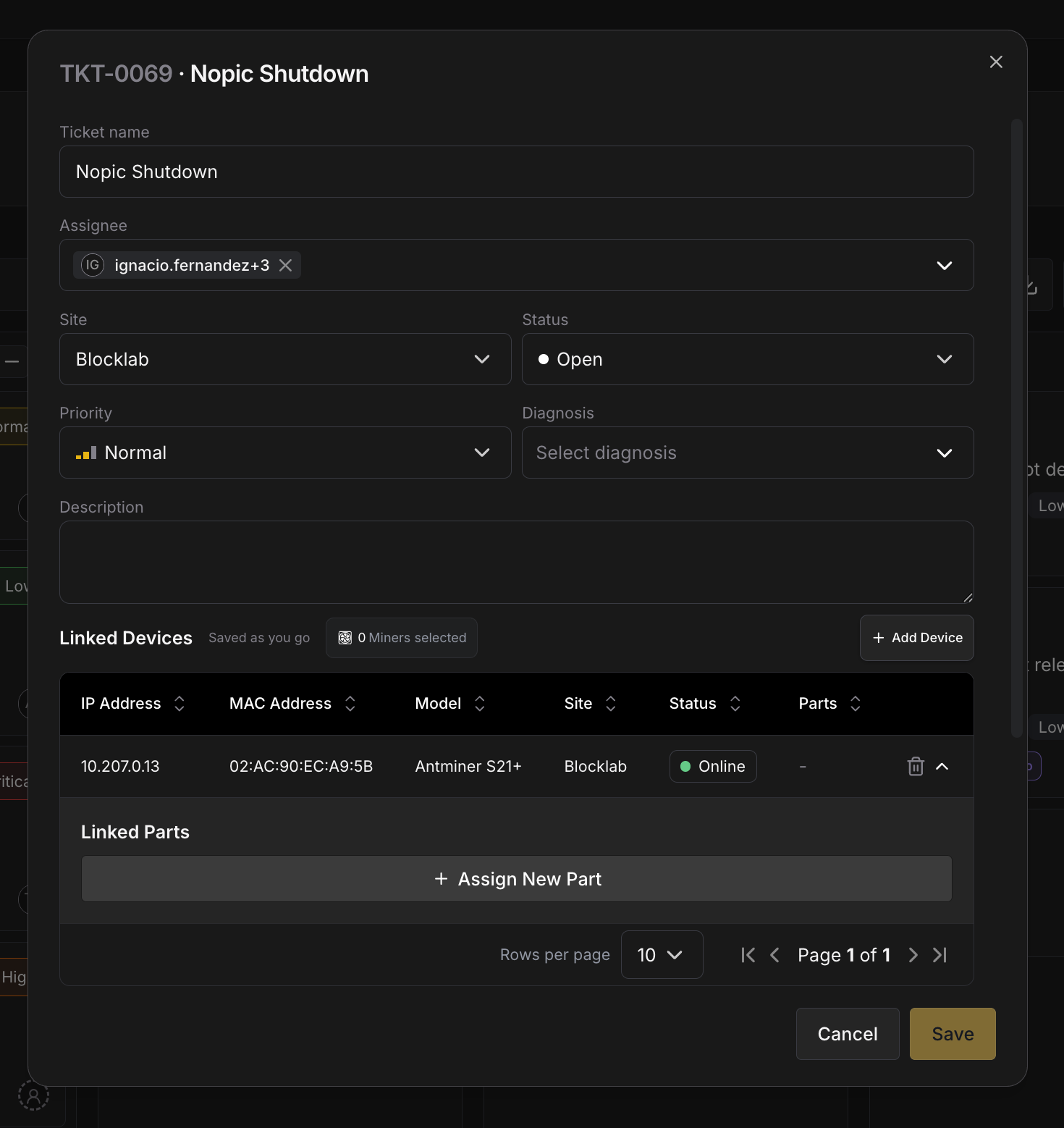
A ticket can link the specific miners the repair covers. Each linked device is a miner from the Miners page and shows its IP, MAC, model, site, and live online status. Add devices by searching for IP or MAC address; system tickets link them for you.
Linked devices are also where parts get attached: expand a device to reserve the parts needed for that machine (see below).
Parts on a ticket
This is the integration between Tickets and Parts.
- Reserve. While a ticket is open, a technician links the spare parts the repair needs. Linking reserves the part: it's spoken for but still physically on the shelf. The part's Available count drops so nobody else plans to use the same unit. You can reserve parts against a specific linked device (with a quantity stepper) or against the ticket as a whole.
- Consume. When the ticket is Closed (a Completed lane), reserved parts are consumed: the part's Total stock is decremented and a consumption entry (stamped with this ticket's code) is written to each part's stock history.
- Release. If the ticket is moved to a Canceled lane, reservations are released back to available stock, with no impact on the part's Total quantity.
Only parts from the ticket's own site can be reserved: a part's stock belongs to one site, and a ticket only draws from where its machines are.
A part can only be reserved from a site that has enough Available stock to cover the quantity. This prevents two technicians from both planning to use the last hashboard.
See Parts → Reserved vs. consumed for the stock side of this flow.
Closing a ticket
Moving a ticket to a Completed lane (e.g. Closed) is the one status change with side-effects:
- Parts are consumed. Every reserved part is deducted from the part's Total stock, and a consumption entry linked to the ticket is recorded.
- Low-stock alerts may fire. If consuming a part drops it below its reorder point, a low-stock alert is raised.
- Reopening never reverses consumption. Consumed parts were physically installed; reopening a closed ticket won't add them back to stock.
A ticket that nobody ever touched (an automated ticket that opened and later auto-closed because the error cleared) closes with zero stock impact, because no parts were ever reserved.
Auto-close & recurrence
Not every system ticket needs a human. A fan stalls briefly, a thermal throttle clears when ambient temperature drops. Commander cleans these up automatically.
A daily batch job reviews untouched system tickets (ones where no human has changed the status, reserved parts, or added a comment) and asks a single question for each: has this error kept clearing? If the underlying error hasn't been reported again within the configured review interval (24 hours by default), the ticket is auto-closed and a note is added to its activity feed explaining why.
- A human touch makes a ticket permanent. The moment someone changes the status, reserves a part, or comments, the ticket is human-owned and will never be auto-closed; the tech might be mid-repair, or the miner might be powered down for service.
- Recurrence opens a fresh ticket. If the same error fires again after a ticket auto-closed, Commander opens a new ticket rather than silently reviving the old one, so each occurrence has its own clean record.
Configure whether auto-close runs, and the review interval, in Automation settings.
Filtering & search
The Tickets page uses Commander's standard two-level filtering, the same pattern as the Action Log.
- Sites dropdown sits in the controls bar for the most common filter: narrowing by physical location.
- Funnel icon opens the filter dialog for everything else: Status, Priority, Assignee, Created by (person / System), custom fields (e.g. Diagnosis), and a date range.
- Search matches ticket code and title.
Bulk actions
Select multiple tickets with the row checkboxes to enable Bulk Actions. The modal applies the same value across all selected tickets for any editable property (Status, Priority, Assignee, Site, or custom fields), and you can change more than one property in a single pass with + Property. A separate Delete action shows a destructive confirmation and warns that any reserved parts will be released.
Comments & activity
Each ticket has a combined activity + comments feed:
- Comments support threaded replies, so a back-and-forth about one detail stays together.
- Activity records every change automatically (creation, assignment, status and priority changes, field edits, and every part reservation, consumption, and release), each with old → new values and who made the change.
Adding a comment counts as human interaction, which exempts a system ticket from auto-close.
Custom fields
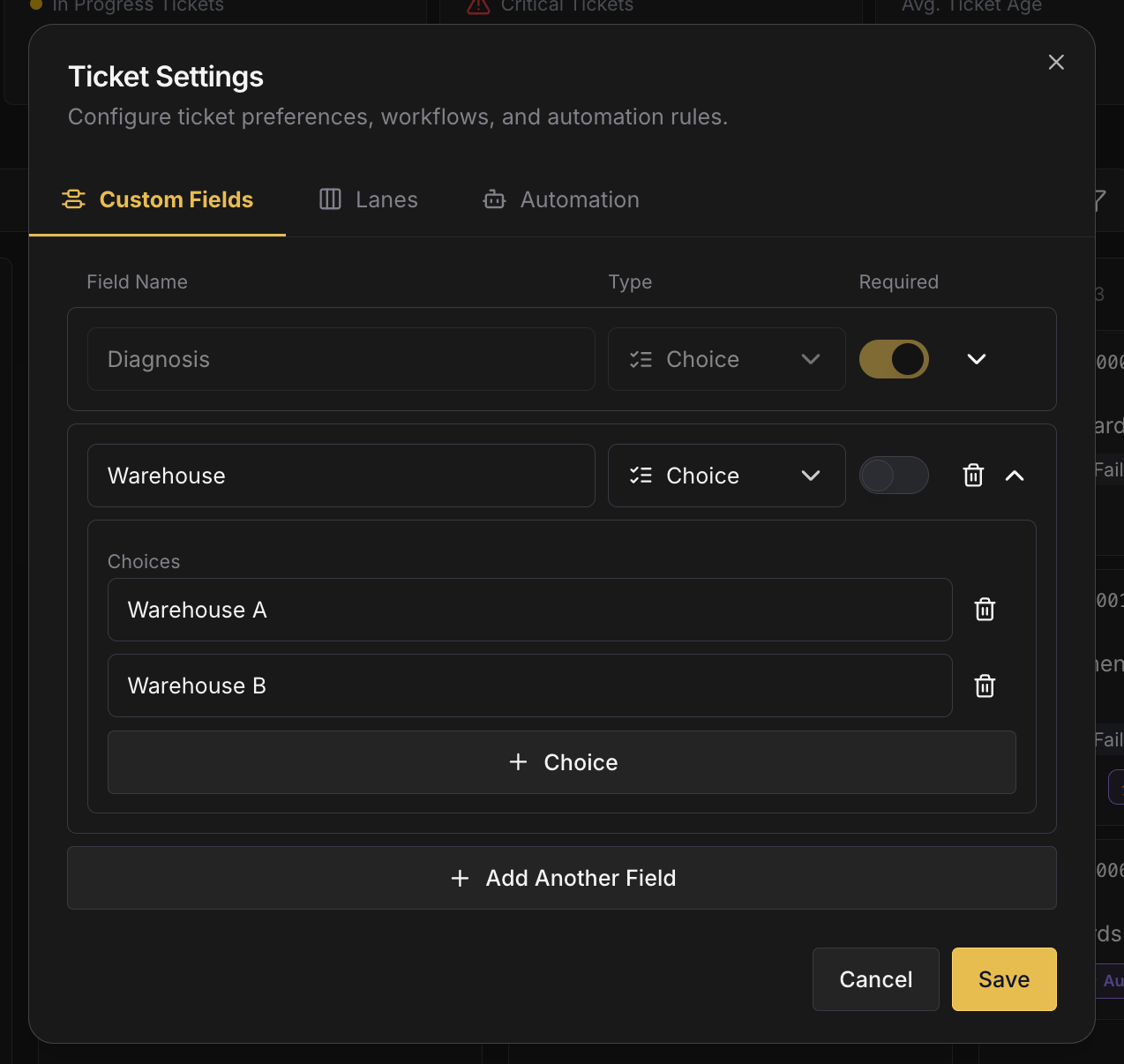
Add your own properties to tickets from Ticket Settings → Custom Fields: for example Diagnosis (root-cause category), Repair type, or Labor hours. Fields can be text, single-select (with your own options), and more, and appear on the ticket, in the table, and in the filter dialog. Use a single-select Diagnosis field to standardize failure categories and report on what's breaking most.
Ticket settings
Open ⚙ Settings on the Tickets page. Configuration is grouped into tabs:
| Tab | What it configures |
|---|---|
| Custom Fields | Add and manage custom ticket properties (Diagnosis, Root cause, Labor hours, …). |
| Lanes | Which statuses appear on the board: rename, reorder, enable/disable, set the default lane, and add custom lanes (each mapped to an Unstarted / In progress / Completed / Canceled behavior). |
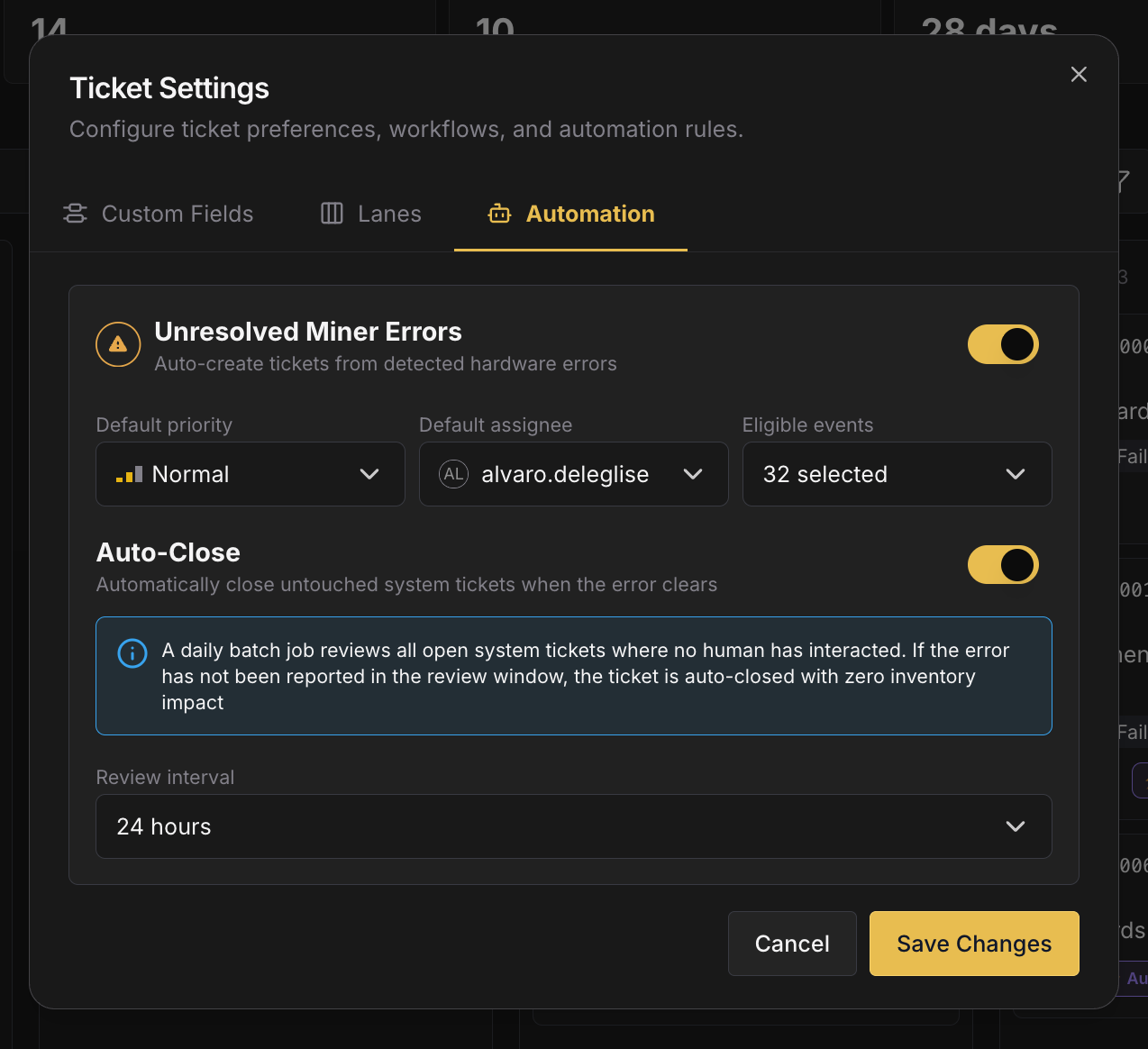
| Automation | Turn auto-create from unresolved errors on or off; set the default priority and default assignee for automated tickets; pick which agent events are eligible to raise tickets; and control auto-close (on/off and the review interval). |
Automation settings
Under the Automation tab:
- Auto-create: toggle whether unresolved miner errors open tickets, pick the eligible events, and set the automated tickets' priority and default assignee.
- Auto-close: toggle whether untouched system tickets close themselves when the error stops recurring, and set the review interval (24 hours by default).
Permissions
Tickets follow Commander's role-based access and the workspace Sites filter: users see and act on tickets only for the sites they have access to. See Getting Started → Permissions & Sites.
Related
- Parts: the spare-parts catalog that tickets reserve and consume from.
- Miners: the machines that tickets link as devices.
- Automation: the filtering and bulk-action patterns Tickets reuses.