
Hosted Clients
Group the miners you host by client to report on them, bill their energy, and optionally give them a login to run their own machines
Overview
If you host miners for other companies or people, Hosted Clients lets you record who owns what. Create a client, assign their miners to it, and Commander can break your fleet data down by client: power use, hashrate, energy and costs.
Use it to:
- Report on each client. See how much power, hashrate and energy each client's miners account for, on the Dashboard, in Reports and in CSV exports.
- Track or bill their energy. Keep a price per kWh for each client and site, or have the site's real energy bill split across its clients.
- Give a client their own login. A client who is a member of your workspace can sign in, see their own miners' data and run commands on them, without seeing the rest of your fleet.
Open Hosted Clients from Commander → More → Clients. Only workspace Owners and members with Read/Write access at the workspace level can see the page.
Clients Table
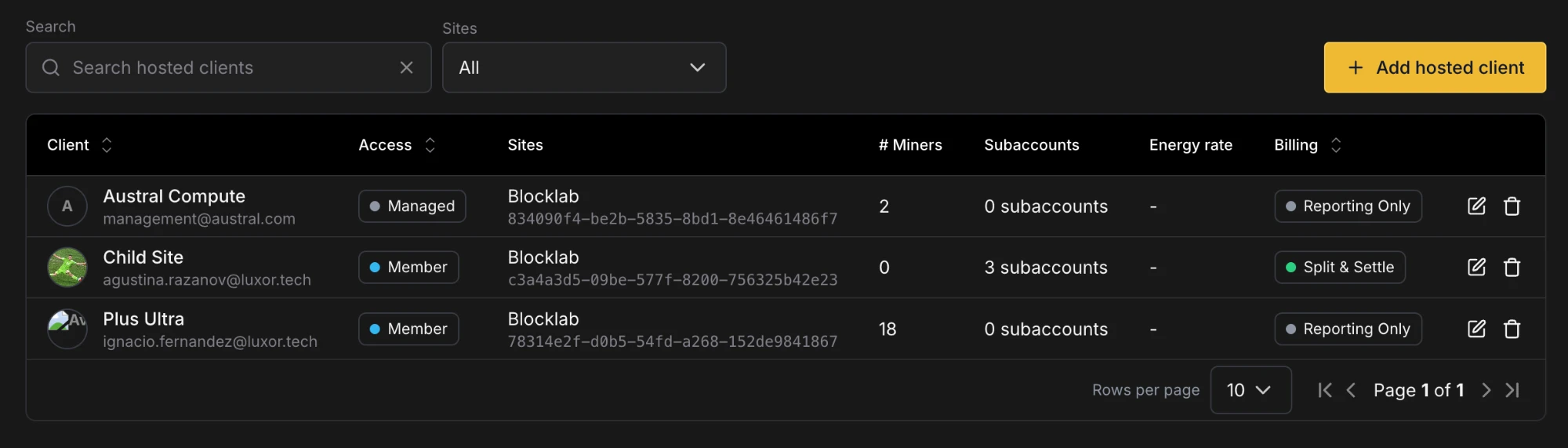
The Clients page lists every hosted client in the workspace. Use the search box to find a client by name or email, and the site selector to show only clients at the sites you pick.
| Column | Description |
|---|---|
| Client | The client's name and email |
| Access | Managed (no login), Member (a workspace member with a login) or Pending (waiting for an approval to finish) |
| Sites | The sites where you host the client. A client at more than one site can be expanded to show one row per site |
| # Miners | How many miners are assigned to the client |
| Subaccounts | The subaccounts linked to the client, for clients whose site bill is split |
| Energy rate | The price per kWh set for the client at each site, for clients you track only |
| Billing | Track only or Split the site bill (see Billing options) |
| Actions | Edit or delete the client. Both are disabled while the client is Pending |
The table can be sorted by Client, Access and Billing.
Adding a Client
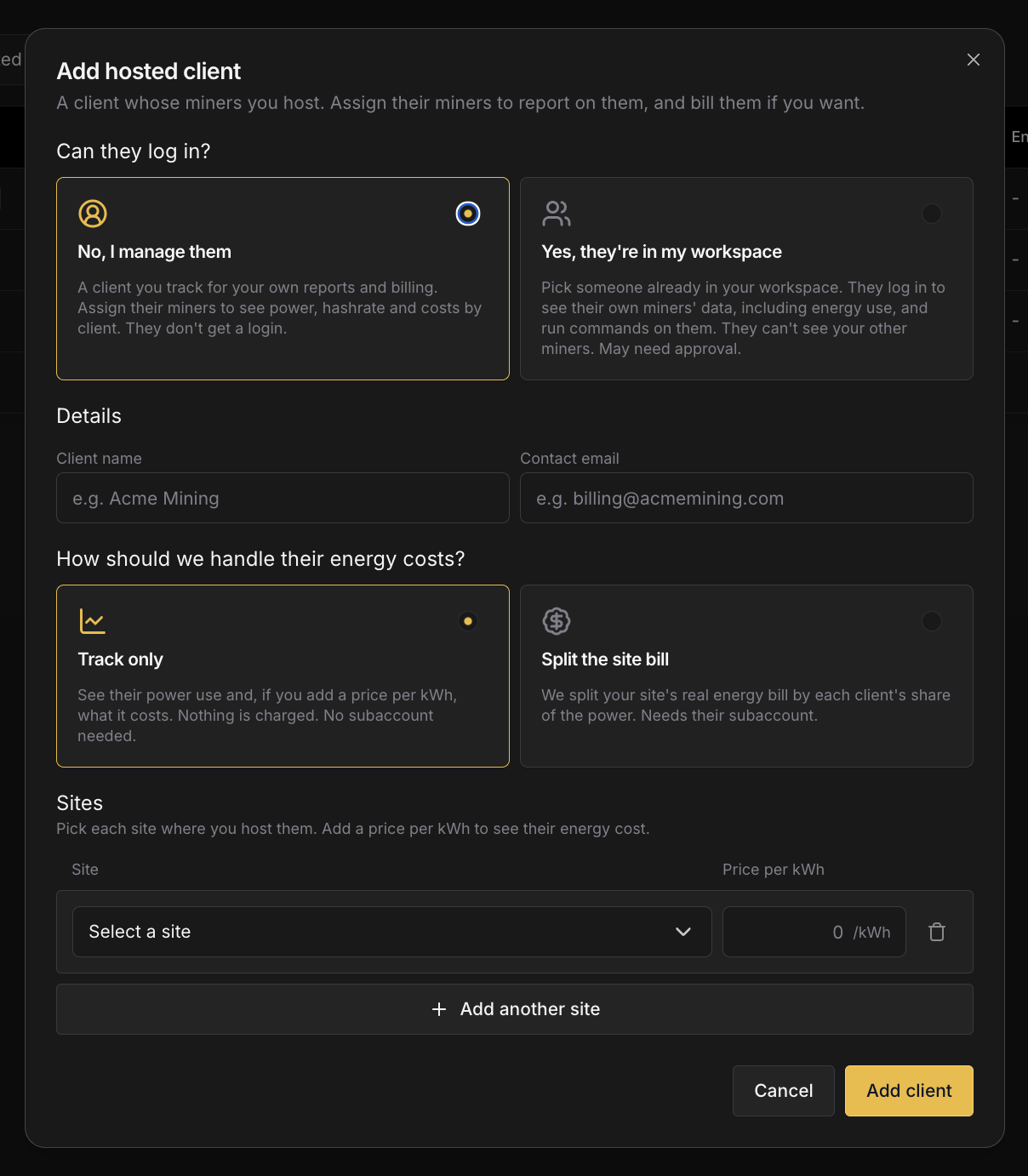
Click Add hosted client and fill in the dialog from top to bottom.
1. Can they log in?
| Option | What it means |
|---|---|
| No, I manage them | A client you keep for your own reports and billing. They don't get a login. This is the most common choice: create one for each customer whose miners you host, then assign their miners to it. |
| Yes, they're in my workspace | Pick someone who is already a member of your workspace. They can sign in, see their own miners' data, including energy use, and run commands on those miners. See What a client with a login can do. |
You can't change this choice after the client is created. To switch, delete the client and add it again.
2. Details
- No, I manage them: enter a Client name and a Contact email. Both are required.
- Yes, they're in my workspace: pick the Workspace member, and give the client a Client name.
3. Billing options
Choose how the client's energy costs are handled.
| Option | What it means |
|---|---|
| Track only | Commander tracks the client's power use. You can add a price per kWh at each site to see what that energy costs. Nothing is charged, and no subaccount is needed. |
| Split the site bill | The site's real energy bill is split across its clients, based on each client's share of the power. Each site needs the client's usual and maximum power draw, and the subaccounts their miners mine to. |
Split the site bill needs Energy
A client's bill can only be split at a site that is set up in Luxor Energy. Luxor finishes the billing setup for each client whose site bill is split, so contact your account manager when you add one. Once a site has clients sharing its bill, every energy bill for that site is split across them.
4. Sites
Add one row for each site where you host the client. Each site can only be added once per client, and every client needs at least one site.
| Billing option | Fields per site |
|---|---|
| Track only | Site and an optional Price per kWh |
| Split the site bill | Site, Subaccounts, Usual load (the client's typical power draw, in kW) and Max load (their maximum, in kW). Both loads are required, and Max load can't be lower than Usual load |
A subaccount can belong to only one client.
Click Add client to save.
Editing and Deleting a Client
Click the edit icon on a client's row to change their name, contact email (managed clients only), billing option and sites. The access choice can't be changed.
- Switching a client from Split the site bill to Track only clears their loads and subaccounts at every site.
- Switching from Track only to Split the site bill requires a usual and maximum load for every site.
Click the delete icon to remove a client. The client loses access to their machines, and this can't be undone.
Approvals
Adding, editing the sites of, or deleting a client with a login changes what a workspace member can access, so it follows your workspace's approval settings. When approvals are on, the change is sent for approval and the client shows as Pending until it is approved. A client can't be edited or deleted while Pending.
Clients without a login never need approval, and neither do changes to a client's name, billing option or price per kWh.
You can also make a workspace member a hosted client from their permissions in your workspace settings, by giving them the Hosted Client role on a Commander site. They then appear on the Clients page automatically.
Assigning Miners to a Client
Assign miners from the Miners page:
- Select the miners.
- Open Bulk Actions → Administrative and choose Assign to Hosted Client.
- Pick the client, or Unassigned to clear the client from the selected miners.
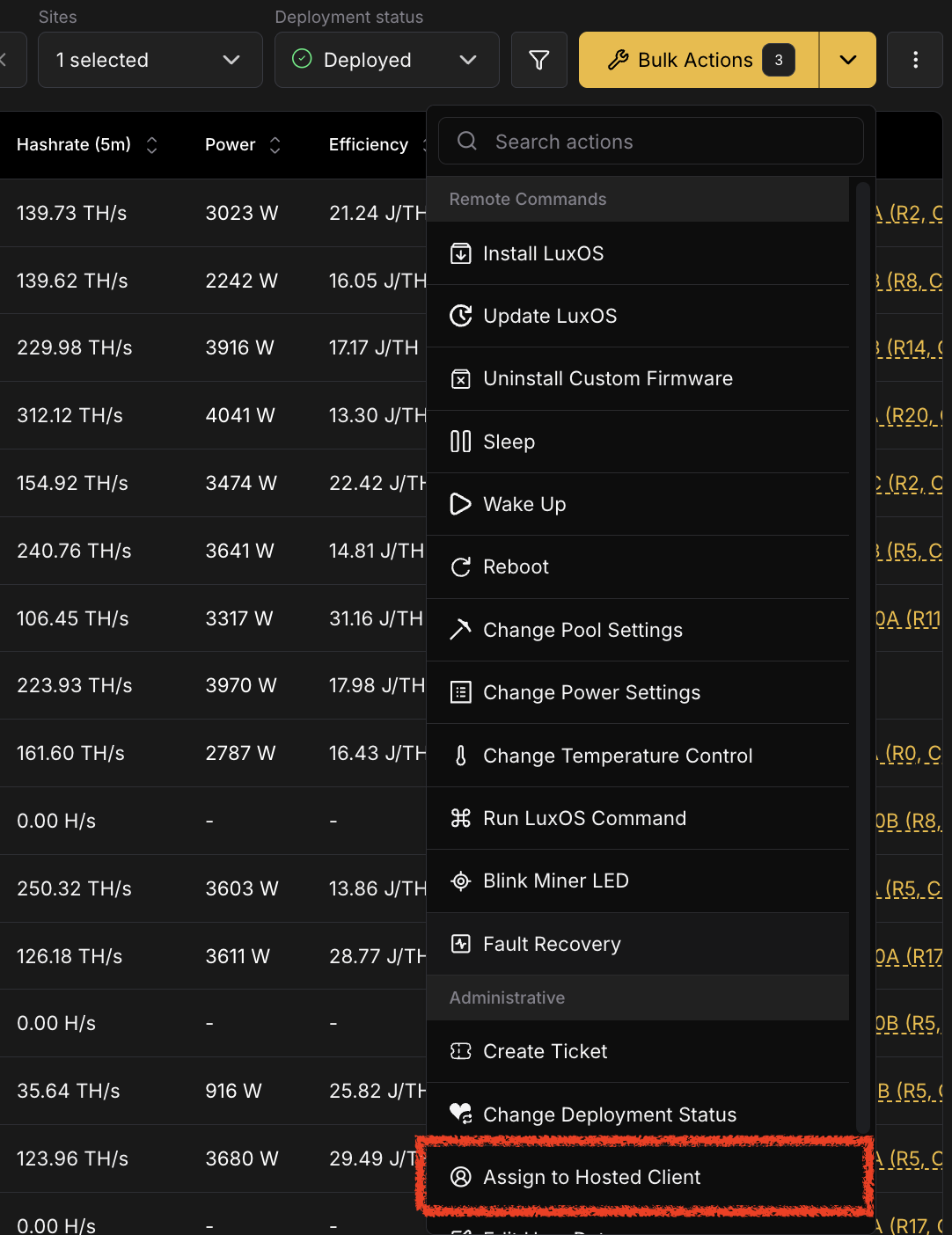
A miner can only be assigned to a client that is hosted at the miner's site. Miners at other sites, and miners with no user-managed record, are skipped, and Commander tells you how many before you confirm.
This is the only way to change a miner's client. A miner's Client ID is read-only everywhere else, including its User-Managed Details tab.
What a Client with a Login Can Do
A client with a login sees a reduced version of Commander:
- Pages: Dashboard, Miners and the Remote Commands history. Every other Commander page is hidden from them.
- Miners: only the miners assigned to them, at the sites where they are hosted. They can't see the rest of your fleet.
- Commands: they can run remote commands on their own miners, such as pool, firmware and other miner commands. They can't change agents, automation, the sitemap, user-managed details or tickets.
Billing information stays with you, the host. Clients don't see energy rates or bills.
Client Data Across Commander
Once miners are assigned, the client shows up throughout Commander:
| Where | What you get |
|---|---|
| Miners | A Client column, and Client as a field in the advanced filter |
| Miner Details | The miner's Client ID, read-only, on its User-Managed Details tab |
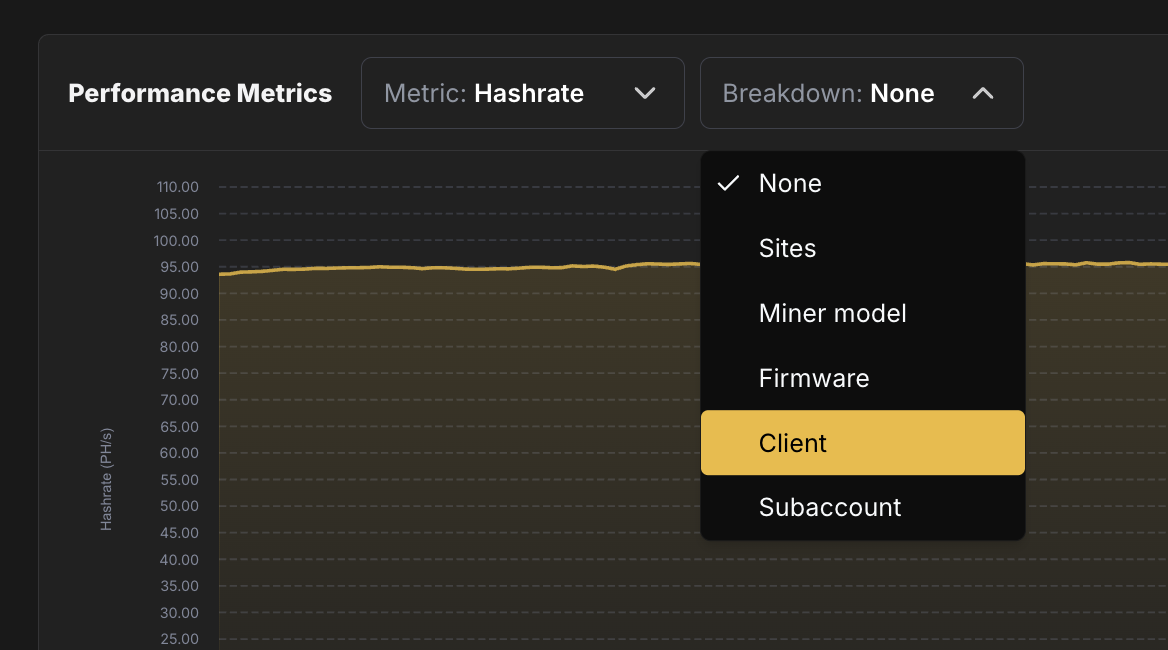
| Dashboard | Client as a chart breakdown, to split a chart by client |
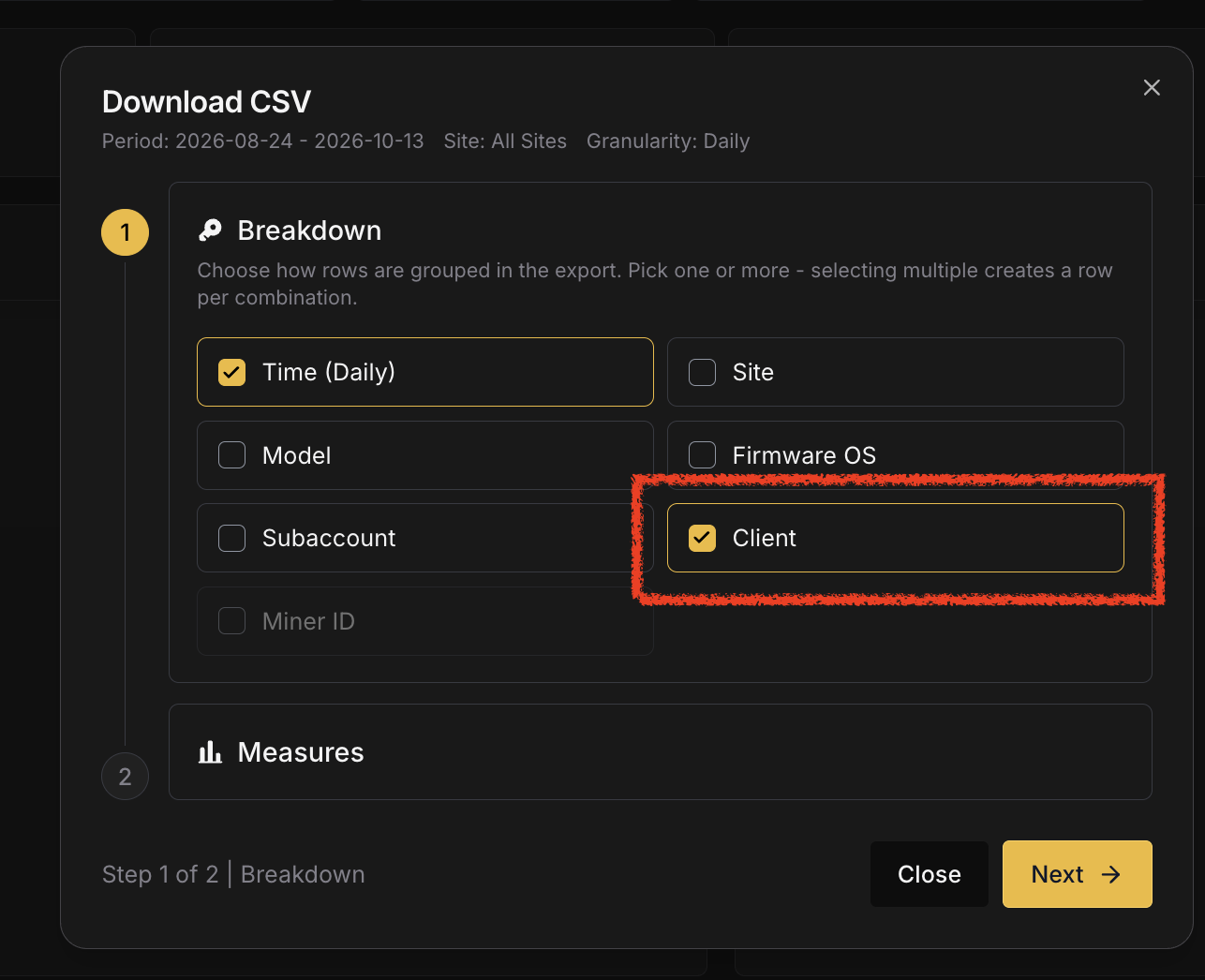
| Reports | Client as a breakdown in the CSV export, for example to export each client's energy in MWh per month |