

User-Managed Details
The purchase, warranty, ownership, and custom information you keep about each miner
Overview
Telemetry can't tell you what you paid for a miner, who supplied it, when its warranty ends, or which hosting client owns it. User-managed details are the fields you keep for that, so you can drop the spreadsheet and have everything next to each miner's live data.
You can work with them in three places:
- The User-Managed Details tab on a miner's Miner Details page, to view and edit one miner.
- Bulk Actions → Administrative on the Miners page, to edit many at once.
- The Miners table, where you can show any of these fields as a column.
Deployment status, retiring, deleting, and consolidating are covered in Miner Lifecycle.
Fields
| Field | Description |
|---|---|
| Asset code | The miner's permanent ID in Commander (see Miner Identity) |
| External ID | Your own ID for the miner, for example from your ERP |
| Manufacturer | The hardware manufacturer (e.g., Bitmain, MicroBT). Filled in from Agent scans |
| Model | The hardware model. Filled in from Agent scans |
| Serial number | The manufacturer's serial number. Filled in from Agent scans |
| Client ID | The Hosted Client the miner belongs to |
| Acquisition date | When the miner was purchased |
| Acquisition cost (USD) | What you paid for the miner |
| Supplier | Who you bought the miner from |
| Warranty expiry | When the manufacturer warranty ends. Filled in automatically for many Bitmain, MicroBT, and Bitdeer miners |
| First seen | When Commander first found the miner |
| Retired at | When the miner was retired |
| Custom Fields | Any Custom Fields your Workspace defines |
| Notes | Free-text notes, such as repair history |
| Files | Attachments such as photos of physical damage, purchase receipts, or warranty documents |
Editing Details
One Miner
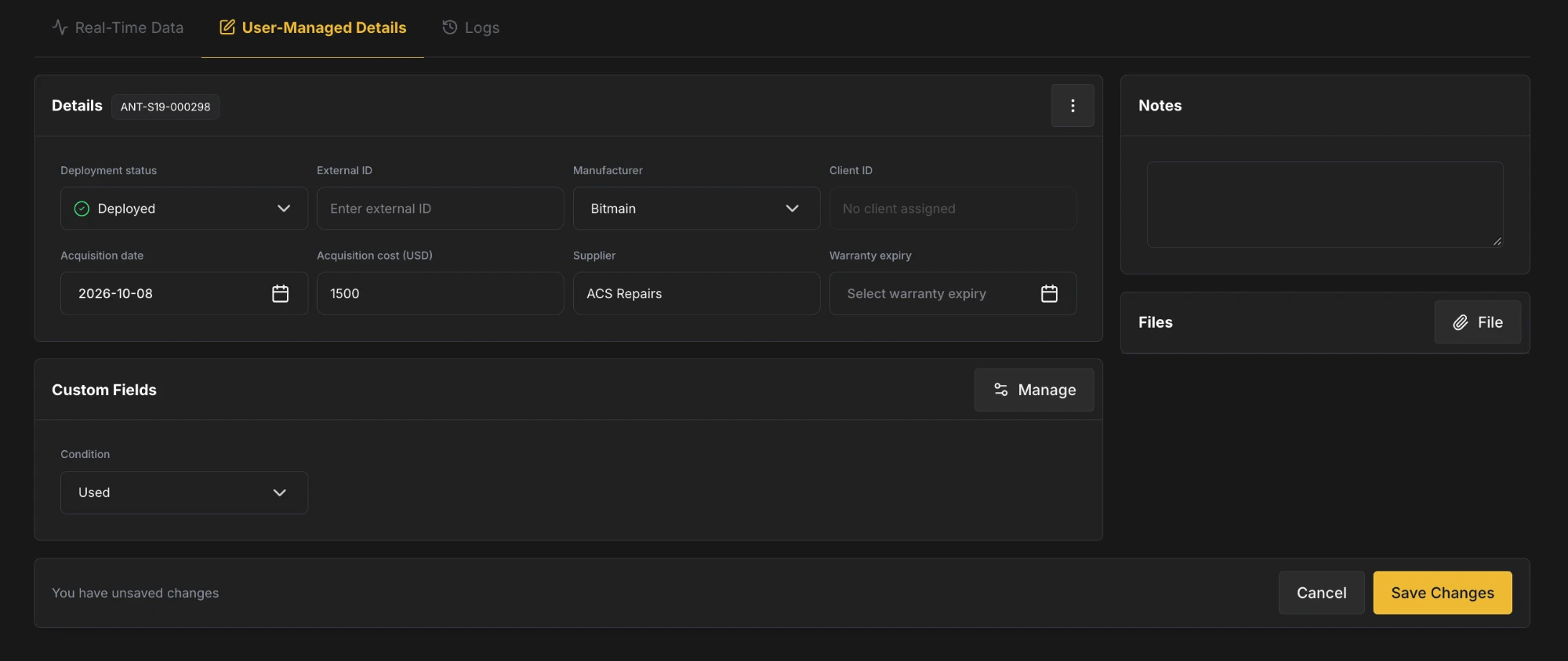
Open the miner's User-Managed Details tab and edit the fields in place. When you change something, a bar appears at the bottom of the page: click Save Changes to keep your edits, or Cancel to discard them.
Many Miners
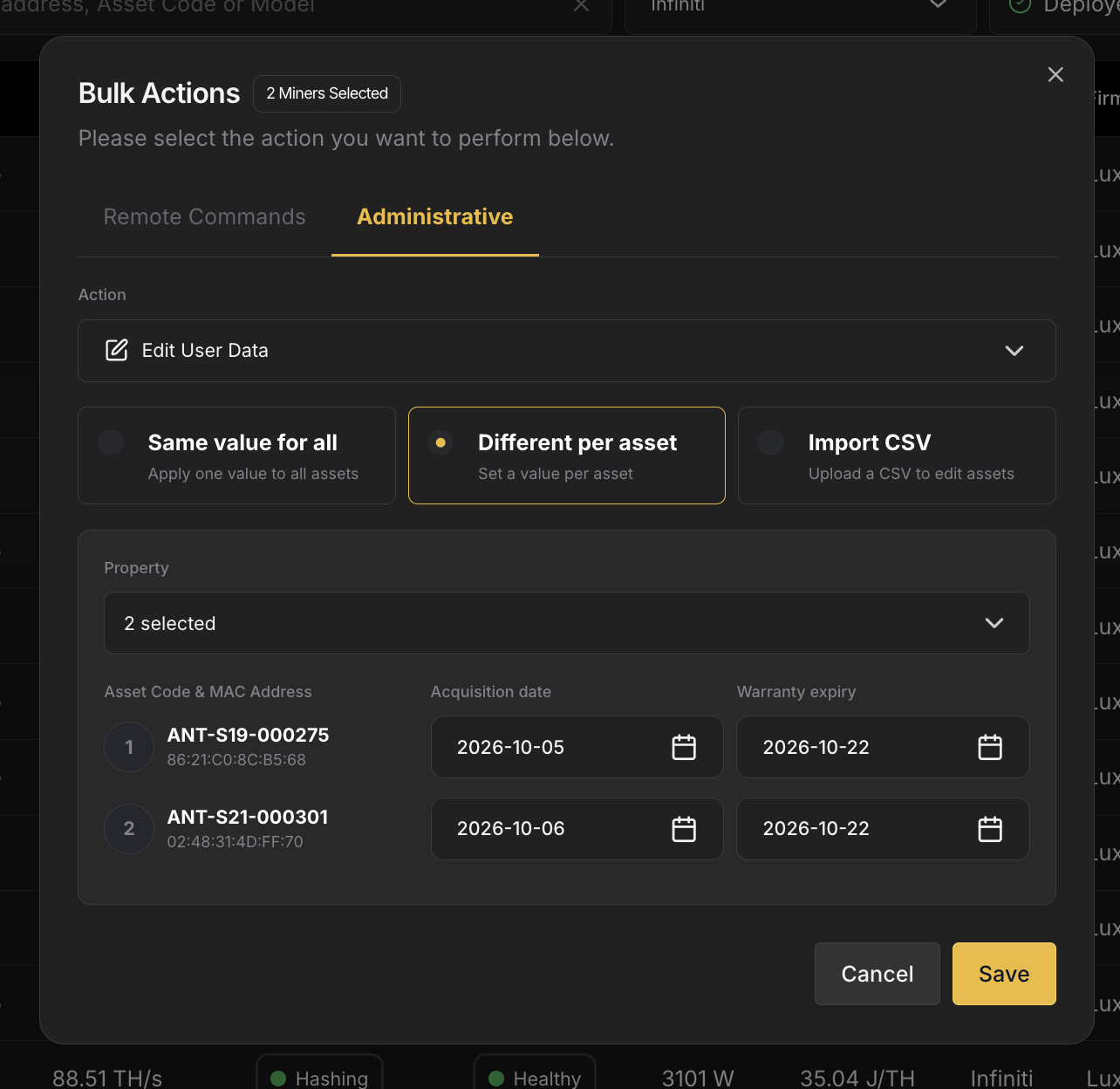
Select miners on the Miners page and use Bulk Actions → Administrative → Edit User Data. Choose one of three modes:
- Same value for all: set a field to the same value on every selected miner.
- Different per asset: pick the fields under Property, then fill in a value for each miner.
- Import CSV: upload a file with the values for each miner.
To add many miners or update their details from a spreadsheet, you can also use Import Inventory.
Every edit is recorded in the miner's Logs → Inventory Edits view.
Custom Fields
Beyond the standard fields, you can add your own custom fields to track whatever you need: purchase orders, rack owners, firmware tiers, RMA numbers, and so on.
Defining Fields
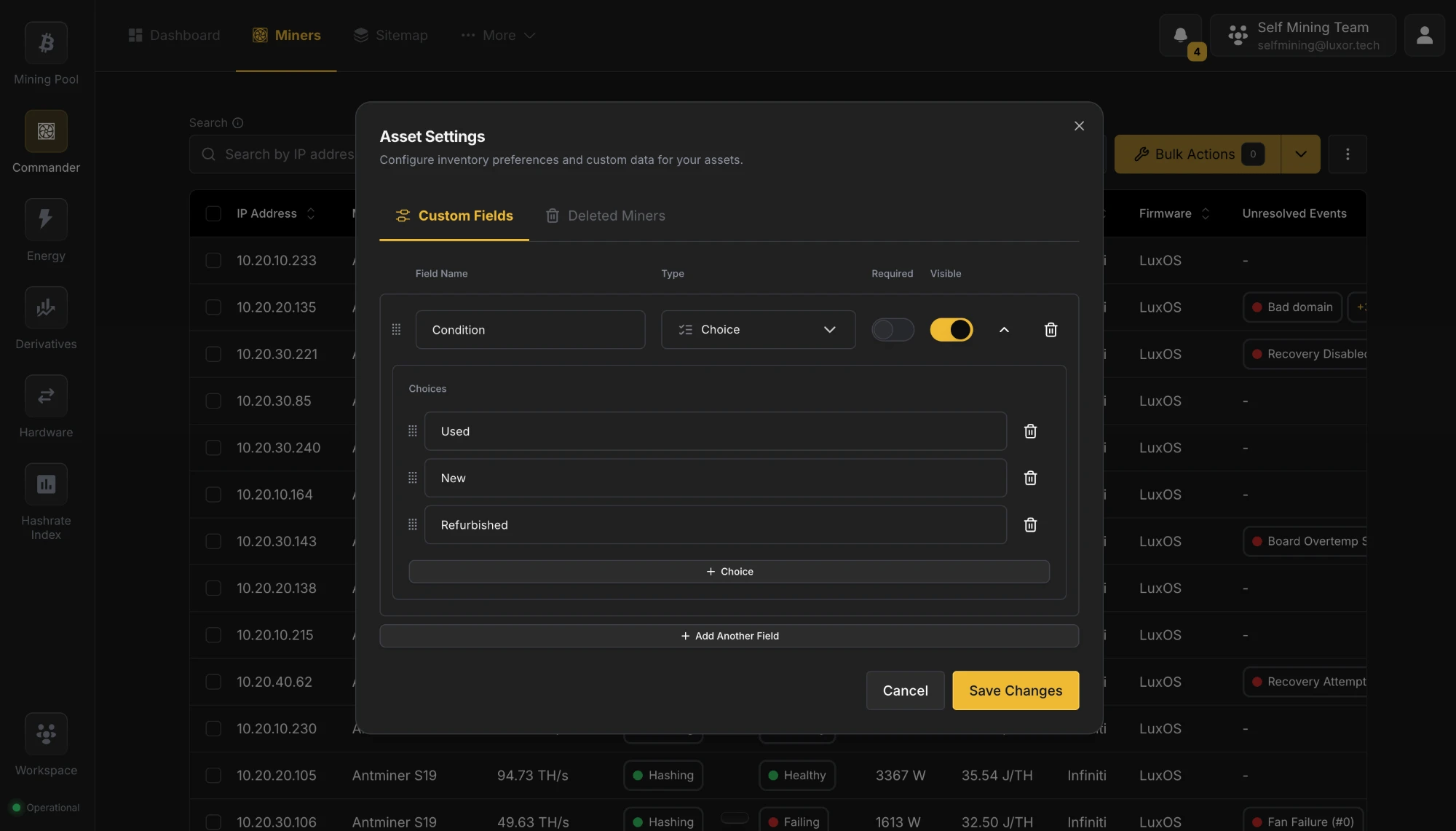
Open ⋮ → Device Settings → Custom Fields on the Miners page (or Manage on a miner's Custom Fields card). Click Add Another Field and give it a Field Name, a Type, and whether it's Required. For a Choice field, list its options under Choices. Drag fields to reorder them, and switch off Visible to hide a field from tables without deleting it. The available types are:
| Type | Use |
|---|---|
| Text | Free text |
| Number | A number |
| Date & Time | A date |
| Yes / No | A yes/no toggle |
| Choice | A dropdown of options you define |
Using Custom Fields
Custom fields have their own card on the User-Managed Details tab, where you edit them like any other field. You can also show them as columns on the Miners page and set them for many miners at once with Edit User Data.
Hosting Clients
If you host miners for other companies, assign each miner to its Hosted Client: select the miners on the Miners page and use Bulk Actions → Administrative → Assign to Hosted Client. The client then shows on the miner's User-Managed Details tab and in the Client column. See Hosted Clients for creating clients, billing, and client logins.
Related
- Hosted Clients: the hosting customers miners can be assigned to.
- Miner Lifecycle: deployment statuses, adding, retiring, deleting, and consolidating miners.
- Parts: the spare-parts catalog used during repairs.
- Tickets: repair tickets link miners as the devices being repaired.
Miner Lifecycle
How Commander identifies each physical miner and tracks it from deployment through repair, storage, and retirement
Hashrate Routing
Aggregate your miners behind a site-level proxy to cut upstream bandwidth, improve share efficiency and split hashrate across pools with automatic failover