

Miner Lifecycle
How Commander identifies each physical miner and tracks it from deployment through repair, storage, and retirement
Overview
Commander keeps every miner you own on file, not just the ones hashing right now. A miner stays on the Miners page when it goes offline, gets repaired, sits in storage, or is retired. This page covers how Commander recognizes each miner, the deployment statuses it moves through, and how miners are added, retired, deleted, restored, and consolidated.
The data you keep on each miner (purchase, warranty, client, custom fields, notes) is covered in User-Managed Details.
Miner Identity
Commander keeps track of every miner with two identifiers, each with its own job:
| Identifier | What it's for | Example |
|---|---|---|
| MAC address | How Commander recognizes a miner on your network. When an Agent reports a miner, its MAC address tells Commander whether it's one it already knows | 02:48:31:4D:FF:70 |
| Asset code | The miner's name in Commander. It's assigned when Commander first finds the miner, never changes, and is what you see and search for on the Miners page | ANT-S21-000301 |
Because Commander recognizes a miner by its MAC address, the miner keeps the same asset code, details, and history when its IP address changes or you move it to another Site.
When a Miner Gets a New MAC Address
Replacing a miner's control board gives it a new MAC address. Commander can't tell it's the same machine, so it adds it as a new miner with a new asset code, and the machine shows up twice. Consolidate the two to merge them back into one.
Asset Code Format
Asset codes follow the pattern [MANUFACTURER]-[MODEL]-[NUMBER], numbered per model within your Workspace. For example:
ANT-S19XP-000001: the first Antminer S19 XP Commander foundANT-S19XP-000002: the second Antminer S19 XPANT-S21-000001: the first Antminer S21
Deployment Statuses
Each miner has a deployment status that tracks where it is in its physical life. It is separate from what the Agent reports, such as Hashing Status and Error Status.
This is the usual life of a miner. The two kinds of arrows mean different things:
- Solid arrows: Commander changes the status on its own.
- Dashed arrows: you change the status.
You can also move a miner to any status at any time.
| Status | Meaning |
|---|---|
| Deployed | Installed at a site and running |
| Ready to Deploy | Added to Commander but not installed yet. It becomes Deployed as soon as an Agent finds it on the network |
| In Repair | Out for repair or in transit to be serviced |
| In Storage | Not installed anywhere, sitting in storage |
| Retired | Permanently removed from your fleet |
Only Deployed miners count toward the Dashboard and Reports. The Deployment status dropdown on the Miners page lists the miners in each status.
To change a miner's status, edit it on its User-Managed Details tab. To change several at once, select them on the Miners page and use Bulk Actions → Administrative → Change Deployment Status or Edit User Data.
Automatic Status Changes
Commander changes a status on its own in a few cases:
- A miner an Agent discovers for the first time is added as Deployed.
- A Ready to Deploy miner becomes Deployed once an Agent finds it.
- A Deployed miner that no Agent has seen for three months is Retired.
- Opening a repair ticket can move its miners to In Repair, and closing it moves them back to Deployed.
Otherwise, Commander never changes a status behind your back. If a miner marked In Repair, In Storage, or Retired starts hashing, you get a Network activity detected alert on the Miners page instead, with a Set to Deployed button to fix it in one click.
Adding Miners
Automatically via Agent Scans
You don't need to do anything for most miners: when an Agent finds a new miner on your network, Commander adds it as Deployed, with its MAC address, manufacturer, model, and serial number. The New miners added alert on the Miners page lets you review what was found. To add newly discovered miners right away instead of waiting, use ⋮ → Sync Discovered Miners.
Via CSV Import
To add miners your Agents haven't found yet (for example, machines in storage or in transit), or to update many miners at once, open ⋮ → Import Inventory on the Miners page. The Import Asset from CSV dialog lists the columns it accepts, and Download Template gives you a ready-made file:
- Key: MAC Address, which identifies each miner.
- Values: Site (required), Serial Number, Model, Supplier, Acquisition Date, Deployment Status, Manufacturer, External ID, Acquisition Cost (USD), and Warranty Expiry. Dates use
YYYY-MM-DD.
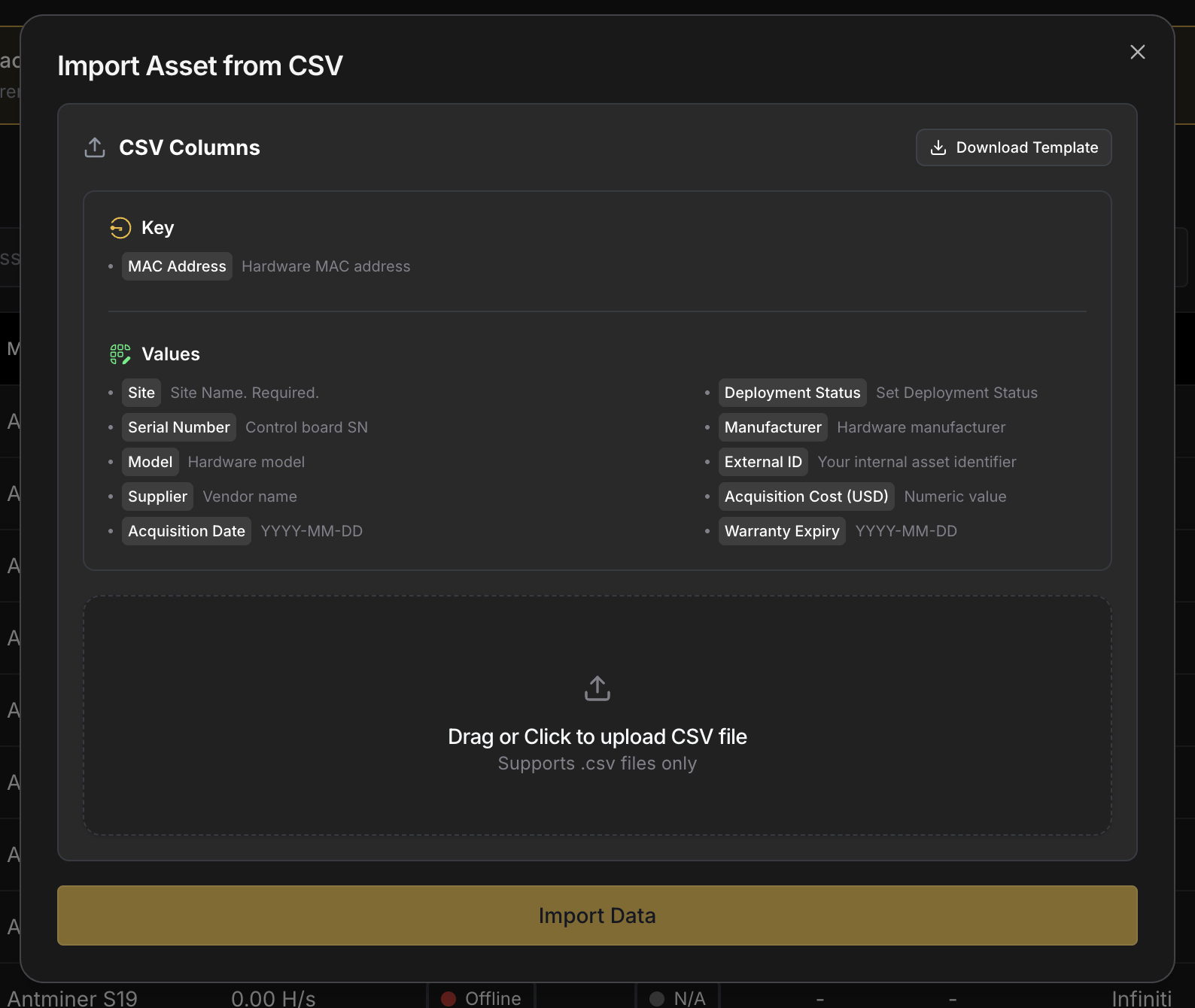
Drag the file in (or click to upload it), then click Import Data. Before anything is saved, Commander checks every row, points out any errors so you can fix the file, and tells you how many existing miners will be updated. A row with the MAC address of a miner you already have updates that miner; any other row adds a new one. Imports handle fleets of up to 100,000 miners.
Retiring Miners
Retire a miner when it leaves your fleet for good but you still want to keep track of it. Retired miners are left out of the Dashboard, Reports, and Sitemap, and listed under the Retired view on the Miners page.
- Retire one miner from the ⋮ menu on its User-Managed Details tab.
- Retire several with Bulk Actions → Administrative → Change Deployment Status.
- Retire miners that have gone quiet from the Miners not recently scanned alert, which lists Deployed miners no Agent has seen in 30 days.
To undo a retirement, change the miner's deployment status back.
Deleting and Restoring Miners
Delete a miner to remove it from the Miners page entirely. Commander won't add it back even if an Agent finds it again, so a delete sticks. If you're not sure, retire the miner instead: Commander offers that option when you delete a miner from its Miner Details page.
- Delete one miner from the ⋮ menu on its User-Managed Details tab.
- Delete several with Bulk Actions → Administrative → Delete Miner.
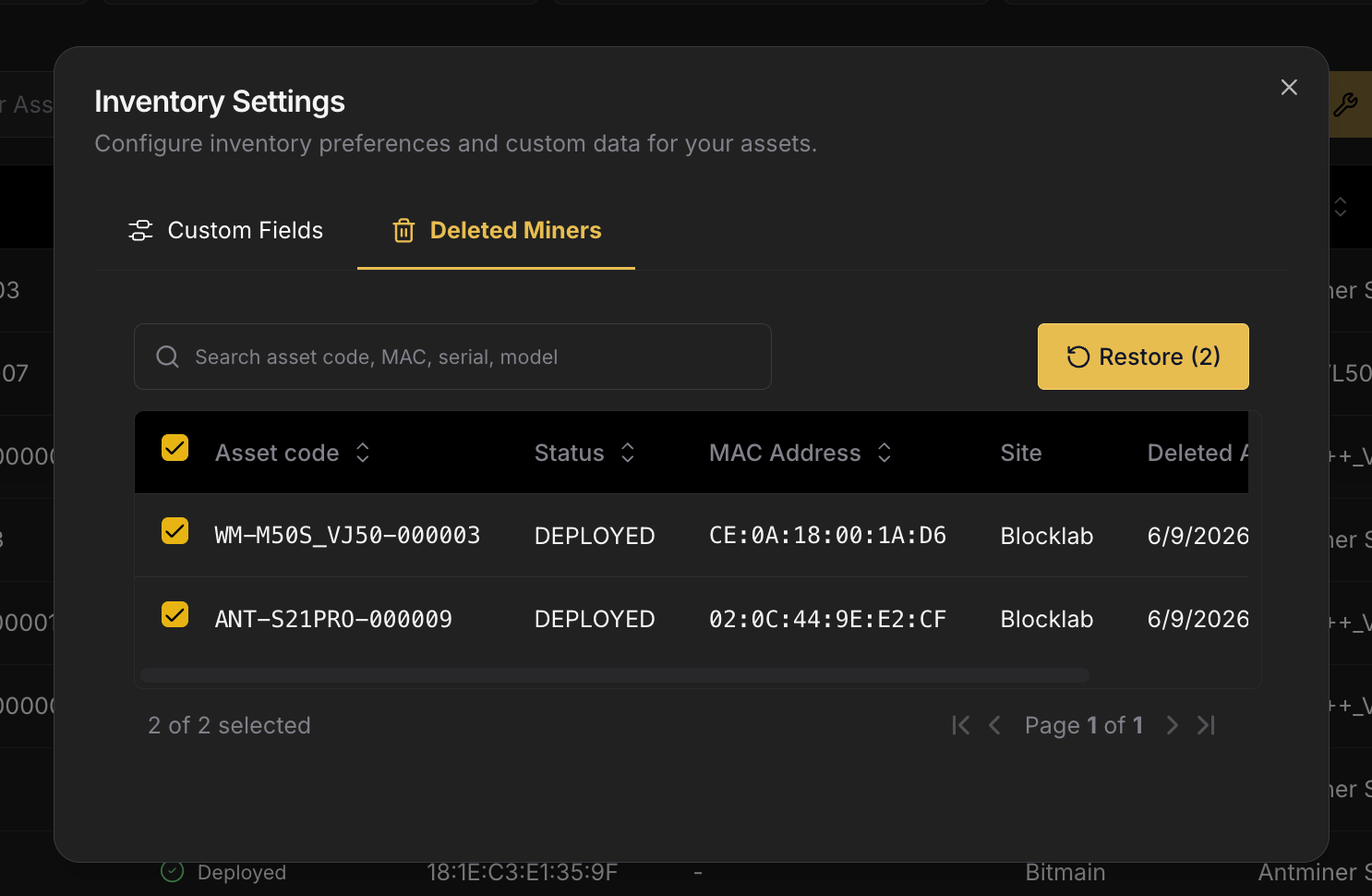
Deleted miners aren't gone for good. Open ⋮ → Device Settings → Deleted Miners on the Miners page, select the miners you want back, and click Restore. If a deleted miner is still reporting to an Agent, the Deleted miner(s) still reporting alert takes you straight there.
Consolidating Records
When you replace a miner's control board, Commander sees a new MAC address and treats the machine as a new miner, so the same physical machine shows up twice. Consolidation merges the two back into one.
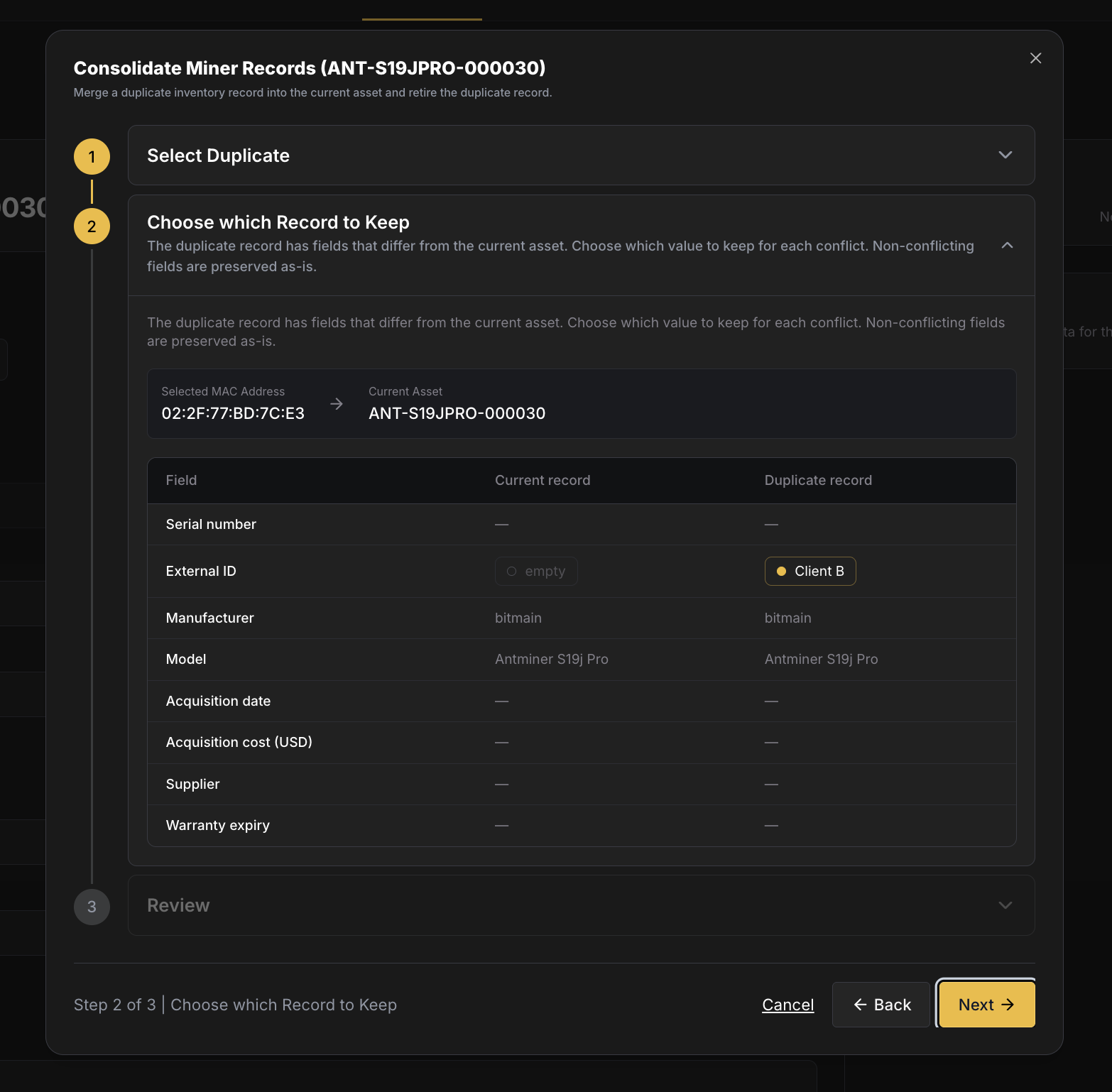
On the miner's User-Managed Details tab, open the ⋮ menu on the Details card and choose Consolidate Records. The dialog walks you through three steps:
- Select Duplicate: find the other entry by asset code, MAC address, or serial number.
- Choose which Record to Keep: where the two disagree, pick which value to keep for each field.
- Review: confirm the result.
The duplicate disappears from the Miners page, and the history of both is kept on the miner you kept. Consolidation can't be undone.
History
Every change to a miner's status and details is logged, including automatic ones, imports, deletions, restores, and consolidations. See one miner's history in Logs → Inventory Edits on its Miner Details page, or your whole Workspace's on the Inventory Edits page under History.