

Miner Details
Everything about a single miner in one place, from live telemetry to the details you keep and its full history
Overview
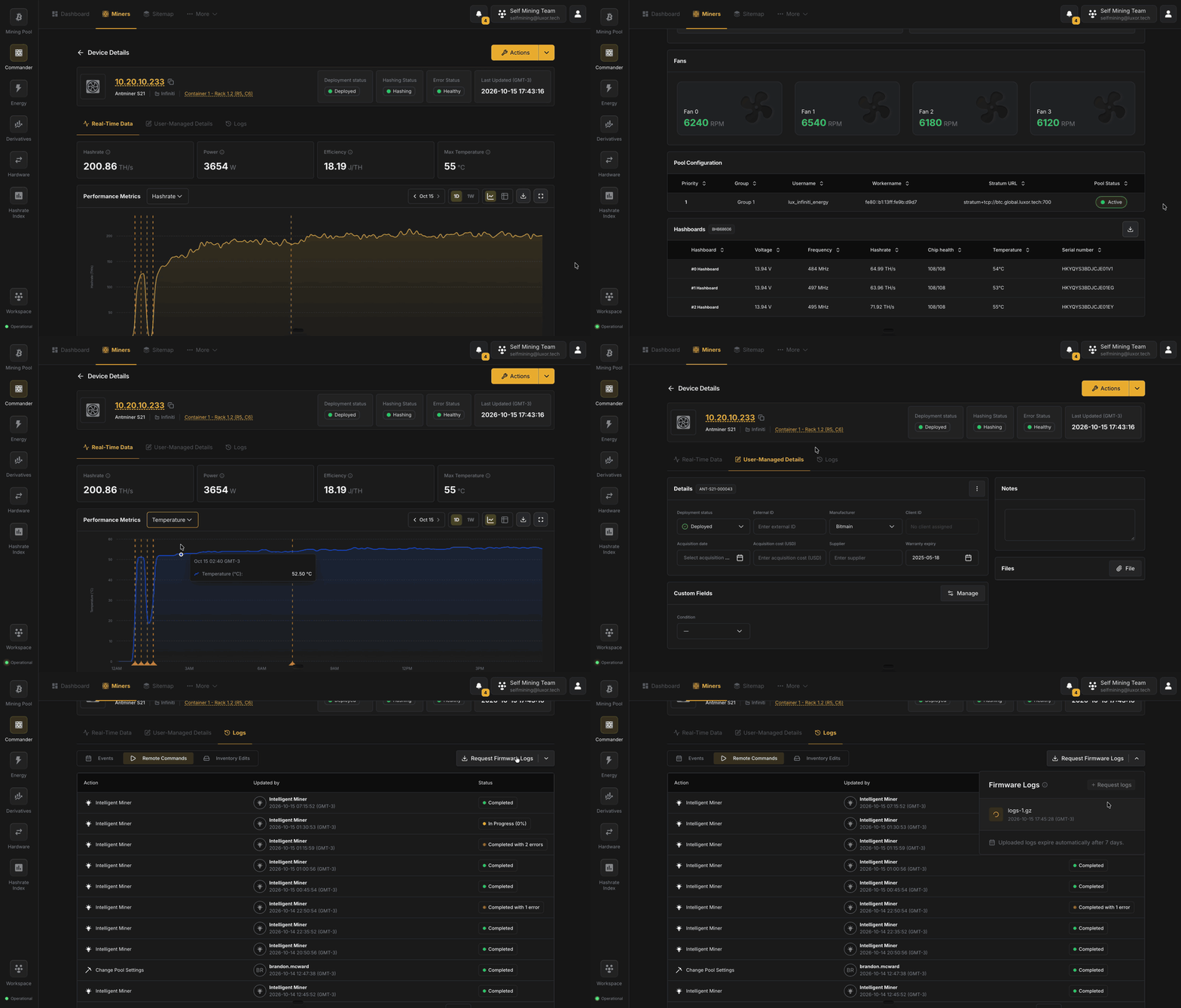
Clicking a miner in the Miners table opens its Miner Details page. The header stays visible while you switch between three tabs:
- Real-Time Data: live performance and configuration.
- User-Managed Details: the information you keep about the machine.
- Logs: events, remote commands, and edits to its details.
A miner that no Agent has scanned yet (for example, one you imported from a CSV) has no telemetry, so its page shows only its user-managed details, with a banner saying it hasn't been scanned. Once an Agent finds it, the full page appears.
Header
- Identity: the miner's IP address (a link to the miner's own web UI), model, Site, and its position in the Sitemap.
- Status tiles:
- Deployment status: where the miner is in its physical life: Deployed, Ready to Deploy, In Repair, In Storage, or Retired. This way a miner out for repair reads as such next to its telemetry. See Deployment Statuses.
- Hashing Status: Hashing, Idle, or Offline.
- Error Status: Healthy or Failing.
- Last Updated: when the miner last reported.
- Actions (top right): run a remote command or an administrative action on just this miner. It offers the same options as Bulk Actions.
Real-Time Data
The default tab shows the miner's live performance.
KPI cards show the current Hashrate, Power, Efficiency, and Max Temperature.
Below them, a performance chart shows Hashrate, Temperature, Power, or Efficiency over time. Pick the metric and the date range, switch between chart and table, download the data as CSV, or expand the chart to full screen. Markers on the chart show when the miner was put to sleep or woken up, when Intelligent Miner acted on it, and when errors happened.
Device information groups the miner's configuration into four cards:
| Card | Fields |
|---|---|
| Network | IP Address, MAC Address, Agent, Agent Status |
| Hardware | Manufacturer, Model, Nameplate Hashrate, Algorithm, Control Board Type, Serial number |
| Firmware | Firmware, LuxOS Support, OS Version |
| Power & Tuning | Power target, plus Autotuner and ATM settings on LuxOS, or Power mode on other firmware |
The tab ends with the miner's Fans, Pool Configuration, and Hashboards, which shows each board's voltage, frequency, hashrate, chip health, temperature, and serial number, and can be downloaded as CSV.
User-Managed Details
This tab holds the information you keep about the machine that telemetry can't provide. See User-Managed Details for what each field means.
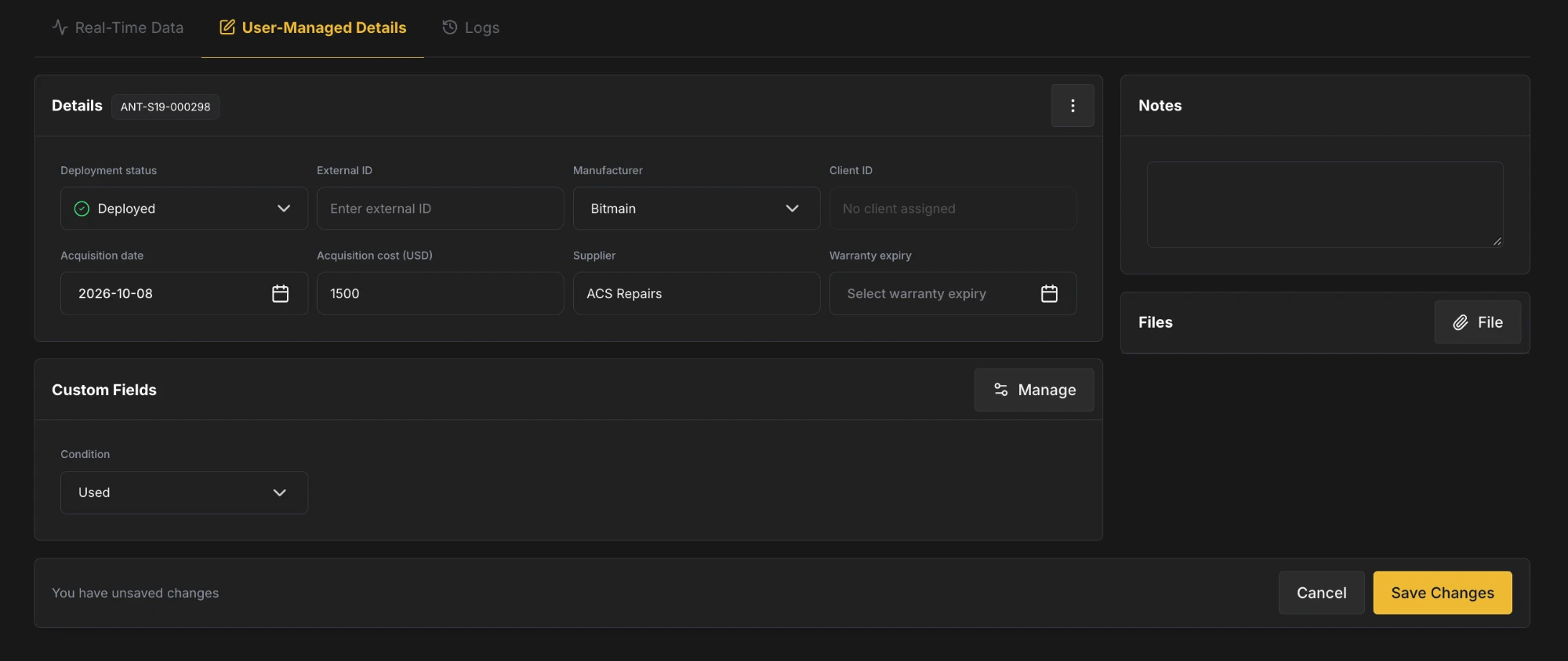
- Details: the miner's Asset code, Deployment status, External ID, Manufacturer, Client ID, Acquisition date, Acquisition cost (USD), Supplier, and Warranty expiry. Clients are assigned with the Assign to Hosted Client action, so Client ID can't be edited here.
- Custom Fields: your Workspace's Custom Fields. Manage lets you add or change fields.
- Notes: free-text notes about the machine.
- Files: click File to attach photos of damage, purchase receipts, warranty documents, and so on.
When you edit a field, a bar appears at the bottom of the page. Click Save Changes to keep your edits, or Cancel to discard them.
The ⋮ menu on the Details card acts on the miner as a whole:
- Consolidate Records: merge a duplicate of this miner into it (see Consolidating Records).
- Retire: mark the miner as permanently removed from your fleet (see Retiring Miners).
- Delete: remove the miner, with the option to retire it instead (see Deleting and Restoring Miners).
A banner warns you when the details here disagree with what the Agent sees: for example, a miner marked In Repair that is hashing, or a Model that doesn't match what the miner reports.
Logs
The Logs tab collects the miner's history in three views:
- Events: the events reported for this miner, with when they started and ended and whether they are resolved. Filter by event and status.
- Remote Commands: recent commands run on this miner, who or what ran them (a user, an automation rule, or Intelligent Miner), and their status. Click a command to open its Action Details page.
- Inventory Edits: every change to the miner's user-managed details, including status changes, imports, and consolidations, with what changed and who changed it.
What is an event?
Events are discrete data points tracked for the miners. LuxOS provides the most comprehensive set of events across
three different categories (Info, Warning, and Error), which you can review in the LuxOS Events &
Troubleshooting guide. For other firmware, Commander provides a limited set of
Error type events.
Request Firmware Logs at the top right of the tab asks a LuxOS or stock Bitmain miner for its firmware logs, which you can then download for 7 days.